Dev Multilingual Function Tutorial
Dev multilingual function usage tutorial
In Settings - System Settings - Modify Teach Pendant Configuration interface, you can change the interface language. The system supports multilingual functionality.
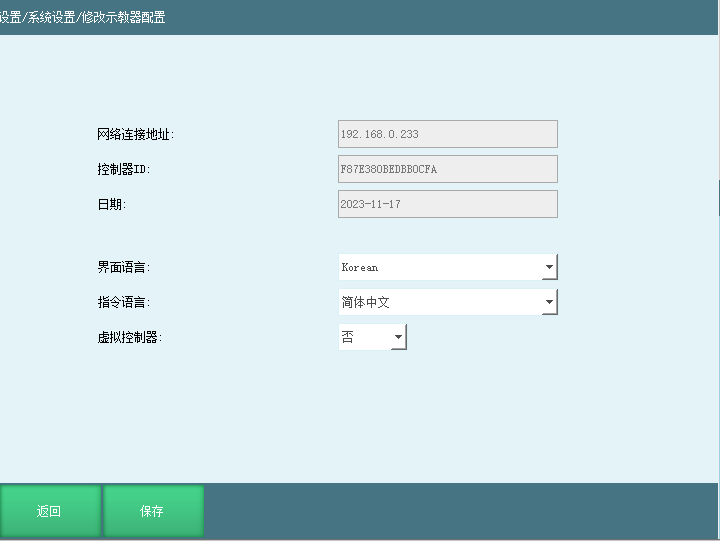
Usage Method
- Export the configuration, copy the msg_languages_Chinese.json/msg_languages_English.json files from the configuration file.
Create a new folder named upgrade in the USB drive root directory, save the msg_languages_Chinese.json/msg_languages_English.json files. If Russian is needed, rename the copied msg_languages_Chinese.json/msg_languages_English.json files to msg_languages_Russian.json.
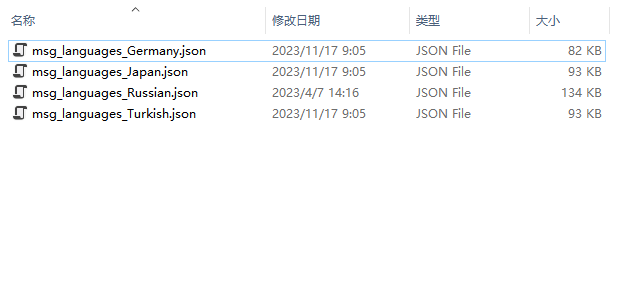
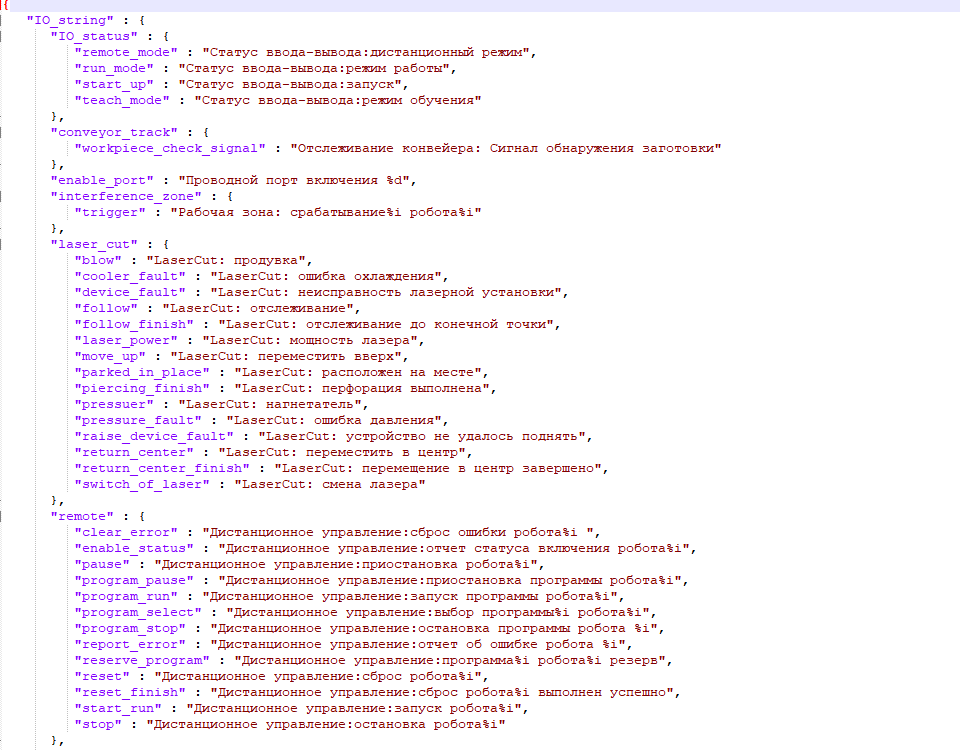
- The translation of msg_languages_Russian.json file needs to be done by the customer. Save after translation.
- In Settings - System Settings - Version Upgrade interface, click [Upload File].
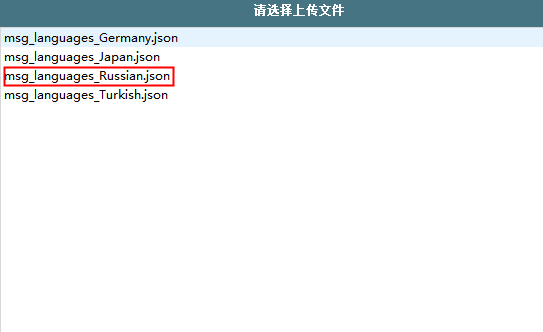
- After the file is uploaded successfully, in Settings - System Settings - Modify Teach Pendant Configuration interface, Russian can be selected for the language.
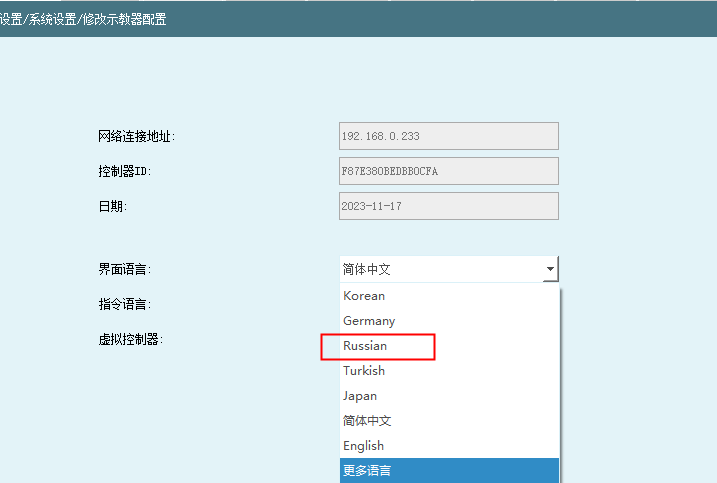
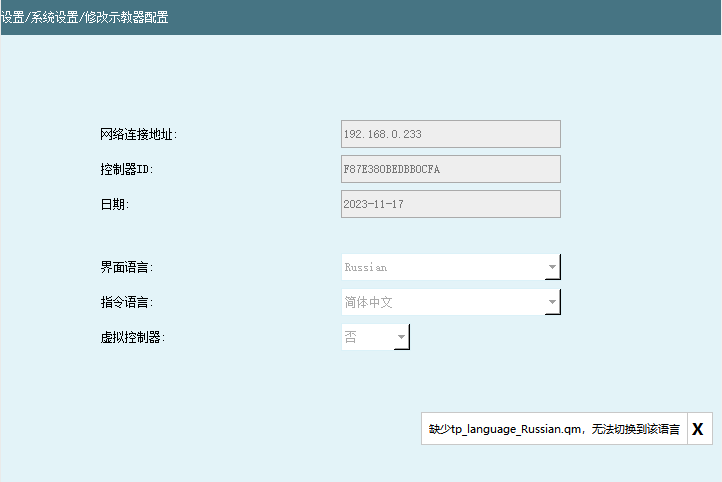
Note: If the corresponding language file is not upgraded, a message indicating the missing corresponding .qm file will appear.
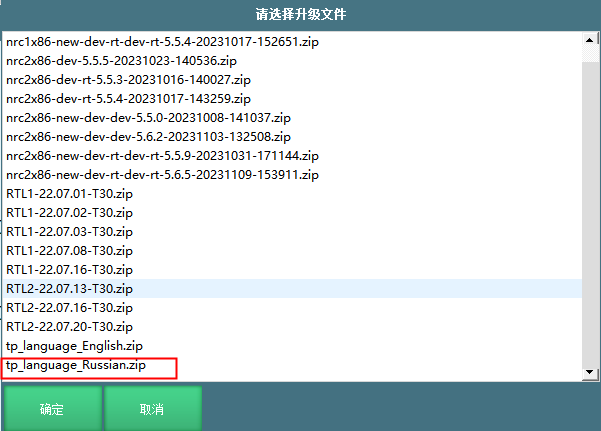
- In Settings - System Settings - Version Upgrade interface, click [Upgrade File], select the language pack and click [OK].
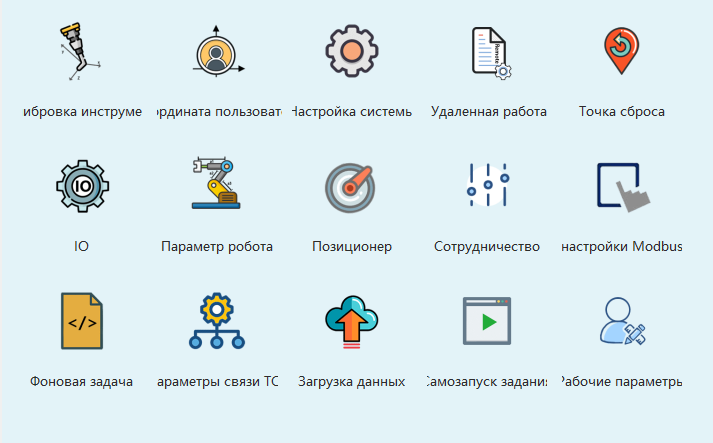
- After the file upgrade is successful, in Settings - System Settings - Teach Pendant Configuration interface, select the interface language as Russian. After restarting the system, the interface language switch is successful.
For translating the tp_en_US.ts file, refer to the "Interface Language Translation" manual.
Note: After factory reset, the uploaded language file will be deleted. You need to re-upload the msg_languages_Russian.json file and the tp_language_Russian.qm compressed package.
AI Retrieval Q&A (Q&A for Retrieval)
Q: When switching languages, a message "Missing corresponding .qm file" appears. How to resolve?
A: This message indicates that the complete language pack upgrade has not been completed. You need to first go to Settings - System Settings - Version Upgrade interface, click [Upgrade File] and select the corresponding language pack compressed file. After completing the file upgrade, return to the teach pendant configuration interface to select the language, and restart the system for normal switching.
Q: After factory reset, the previously uploaded custom language is gone. What to do?
A: Factory reset will clear manually uploaded language files. You need to re-upload the corresponding language json file and language .qm compressed package according to the tutorial steps. After completing the file upload and upgrade operations, select the target language again and restart the system to restore.
Q: Where can I switch the teach pendant interface language?
A: In System Settings - System Settings - Modify Teach Pendant Configuration interface. After completing the language file upload and upgrade, you can select the corresponding target language in this interface. It takes effect after restarting the system.