Modify Robot Points
Core Content
Notes
When the target point coordinate is Cartesian, tool, or user coordinate, the modified point tool must match the actual tool used, otherwise the program will error during runtime!
When the target point coordinate is user coordinate, the modified point user must match the actual user used, otherwise the program will error during runtime!
How to Modify Points
Set Current Position as Target Point
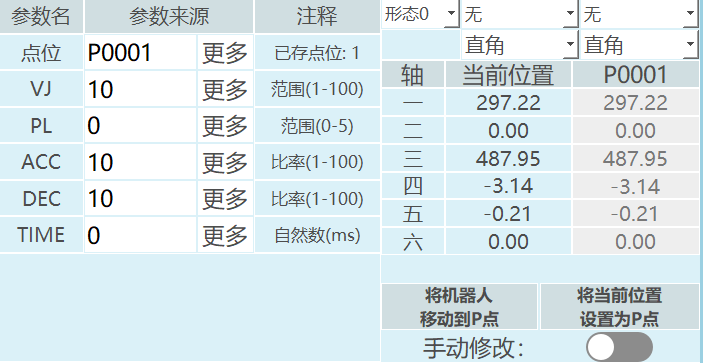
Insert instruction and select to create a new P variable or GP variable.
If the point selection is "New", you need to click the OK button on the parameter setting interface. After clicking OK, a new local position variable is created. Select the newly created variable, click [Modify], click [Set Current Position as P Point].
If GP point is selected, you can directly click [Set Current Position as GP Point] on the parameter setting interface.
[Set Current Position as P/GP Point]: If the current point is a joint point, the current joint point coordinates will be written to the target variable. If the current point is a Cartesian point, the current Cartesian point coordinates will be written to the target variable. If the current point is a tool point, the current tool point coordinates will be written to the target variable. If the current point is a user point, the current user point coordinates will be written to the target variable.
A dialog box pops up "Continue modifying point?". Click [OK] to save the current position to the target variable. Click [Cancel] will not record the robot's current point to the target variable, and you can continue moving the robot to the desired point. The "Current Position" in the parameter interface changes continuously as the robot moves.
Manually Modify Target Point
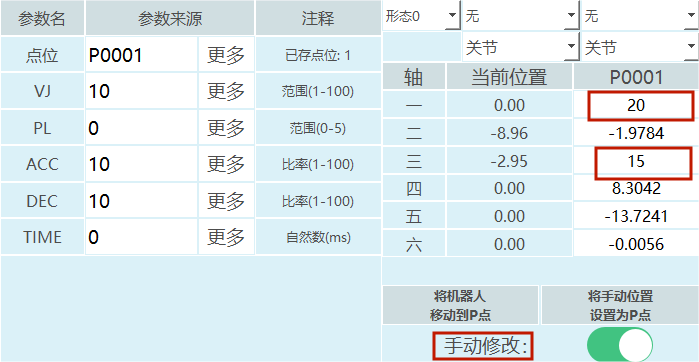
When manually modifying the robot position, you need to first turn on the "Manual Modify" switch for the point to be modified successfully.
Turn on the manual modify button, modify the point of the target variable's target axis. Fill in the required coordinate value. As shown above, manually modify P0001 target variable's joint coordinate axis 1 to 20, axis 3 to 15. Click [Set Manual Position as P/GP Point], a dialog box pops up "Continue modifying point?". Click [OK] to save the modified point position to the target variable. A white bar notification will indicate modification success. Click [Cancel] to continue modifying the target axis point.
[Move Robot to P/GP Point] moves the robot to the position stored in the selected target variable. For example: in a job file with multiple motion instructions, if you want to move a specific point individually, select the instruction in the program instruction interface, click [Modify], press the power-on enable button, click [Move Robot to P/GP Point], and the robot will reach the target point.
Target Point Information Parameters
Configuration
Configuration range: [0,8]
For 6-axis serial multi-joint robots, there are configuration parameters. If the configuration parameter is set to "Current", the system will automatically calculate the robot's current configuration value through conversion. The configuration value is calculated from the joint positions of axes 1, 3, and 5. If the range is between [-90,+90], it is 1, otherwise 0.
The configuration value is the binary conversion of the robot's axis 1, 3, and 5 positions to decimal, then plus 1.
For example: a six-axis robot with axis 1 at 59°, axis 2 at 69°, axis 3 at 79°, axis 4 at 89°, axis 5 at 99°, axis 6 at 109°.
Result: Binary 110 = Decimal 6. Configuration value is the decimal result plus 1. This point's configuration value is 7.
| Axis | Axis 1 | Axis 3 | Axis 5 |
|---|---|---|---|
| Binary Value | 1 | 1 | 0 |
- For four-axis SCARA robots, there are left-hand/right-hand parameters.
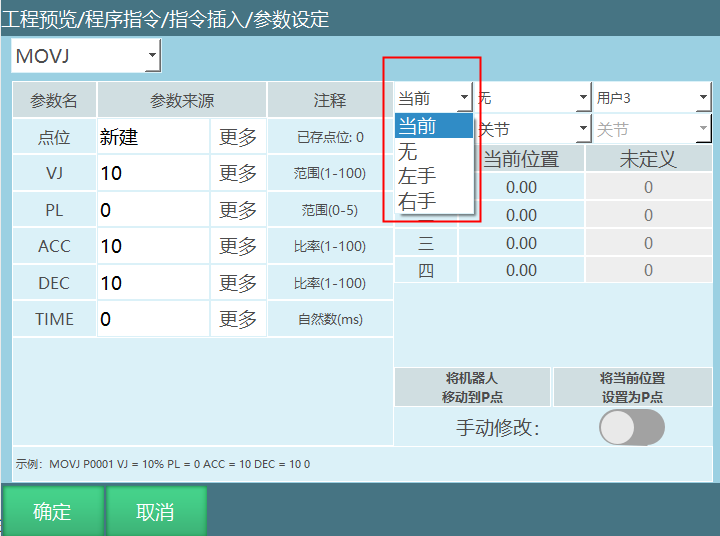
Modify target point configuration:
Turn on the manual modify button, click configuration, select the configuration value to modify.
After modification, click [OK] and the configuration value is modified successfully.
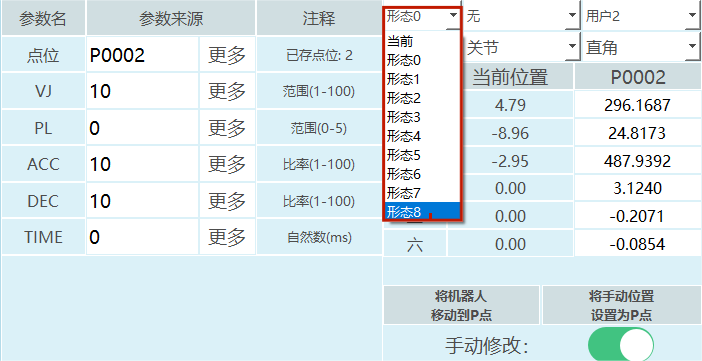
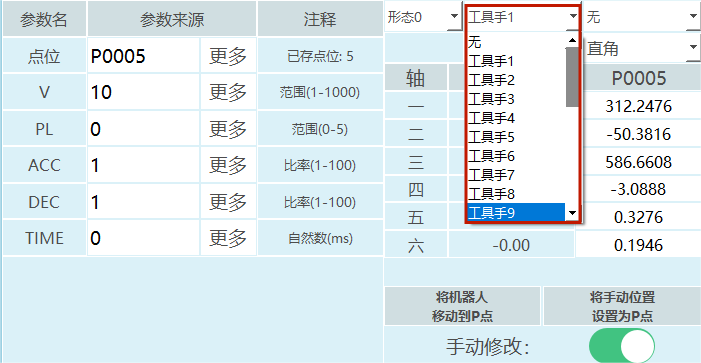
Tool
Range: [0,999].
Modify target point tool:
Turn on the manual modify button, click tool, select the tool number to modify.
After modification, click [OK] and the tool is modified successfully.
User Coordinate
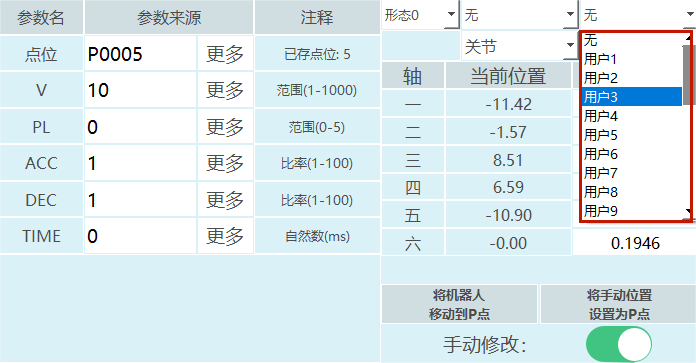
Coordinate range: [0,999]
Modify target point user coordinate:
Turn on the manual modify button, click user, select the user coordinate number to modify.
After modification, click [OK] and the user coordinate number is modified successfully.
Coordinate System
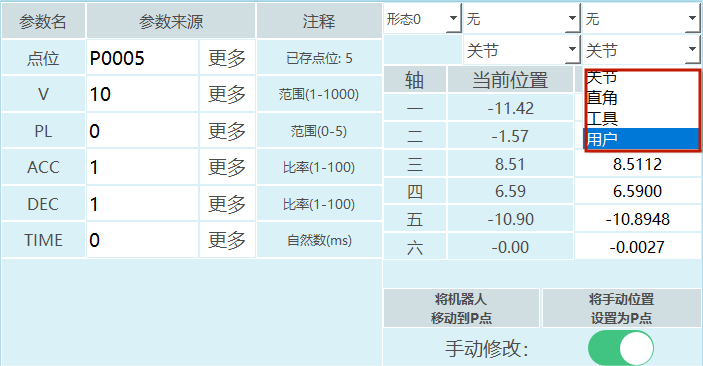
Turn on the manual modify button, click target point coordinate.
Select the coordinate system to modify. After modification, click [OK] and the coordinate system is modified successfully.
AI Retrieval Q&A (Q&A for Retrieval)
Q: How to set the current position as the target point?
A: Insert an instruction and select to create a new P variable or GP variable, then click [Set Current Position as P/GP Point]. After confirming, the current position will be saved to the target variable.
Q: How to manually modify the target point?
A: Turn on the "Manual Modify" switch, modify the point of the target variable's target axis, fill in the required coordinate value, then click [Set Manual Position as P/GP Point]. After confirming, the modification is successful.
Q: What are configuration parameters?
A: Configuration parameters are parameters for 6-axis serial multi-joint robots, with a range of [0,8]. They are calculated from the joint positions of axes 1, 3, and 5, resulting from the binary conversion of these axis positions to decimal plus 1.
Q: What should I pay attention to when modifying points?
A: When the target point coordinate is Cartesian, tool, or user coordinate, the modified point tool must match the actual tool used. When the target point coordinate is user coordinate, the modified point user must match the actual user used, otherwise the program will error during runtime!
Q: How to move the robot to a set point?
A: Select the instruction in the program instruction interface, click [Modify], press the power-on enable button, click [Move Robot to P/GP Point], and the robot will reach the target point.
Version History
| Version | Date | Changes | Author |
|---|---|---|---|
| 1.0.0 | 2026-04-07 | Initial version | tongmengyuan123 |