OPC-UA Parameters Tutorial
Server
Environment Preparation:
Install UaExpert software.
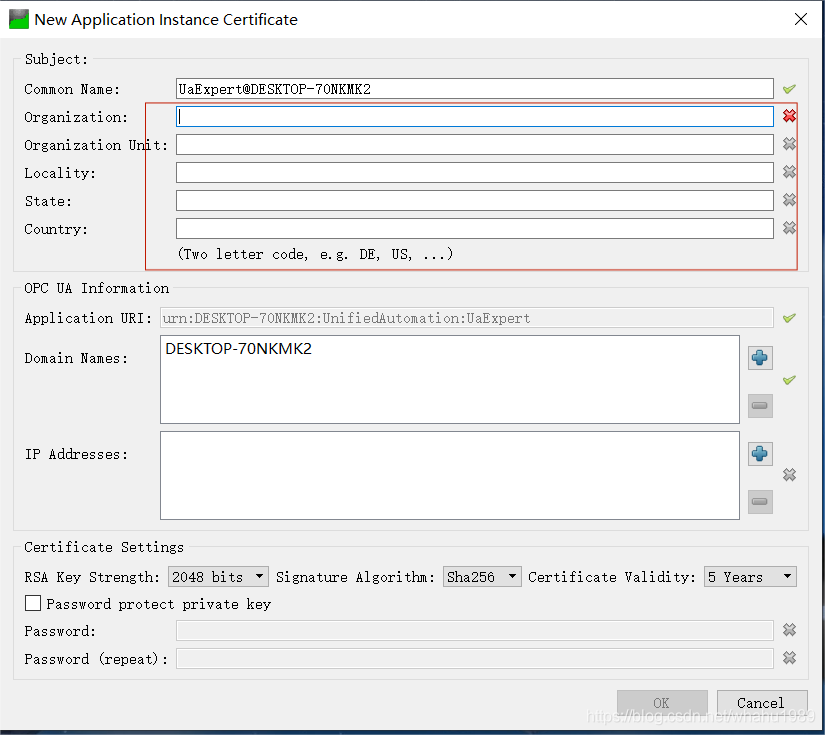
After installation, open the software. The following interface appears. Enter any information in the marked part and click "OK".
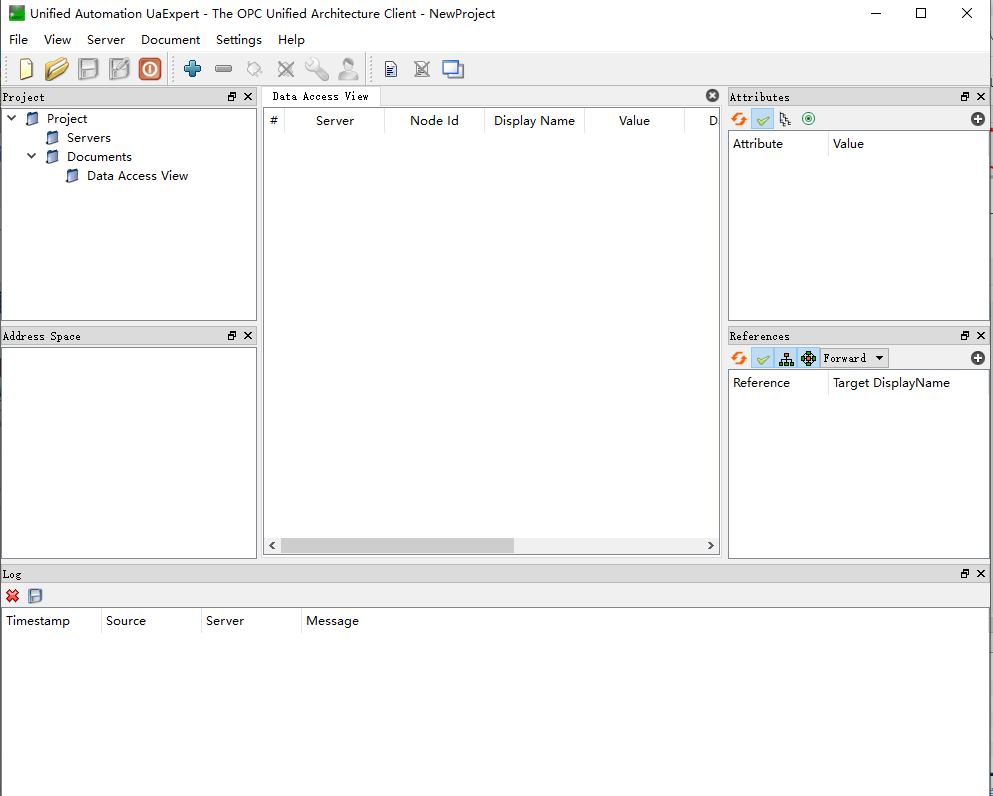
- The interface starts, as shown:
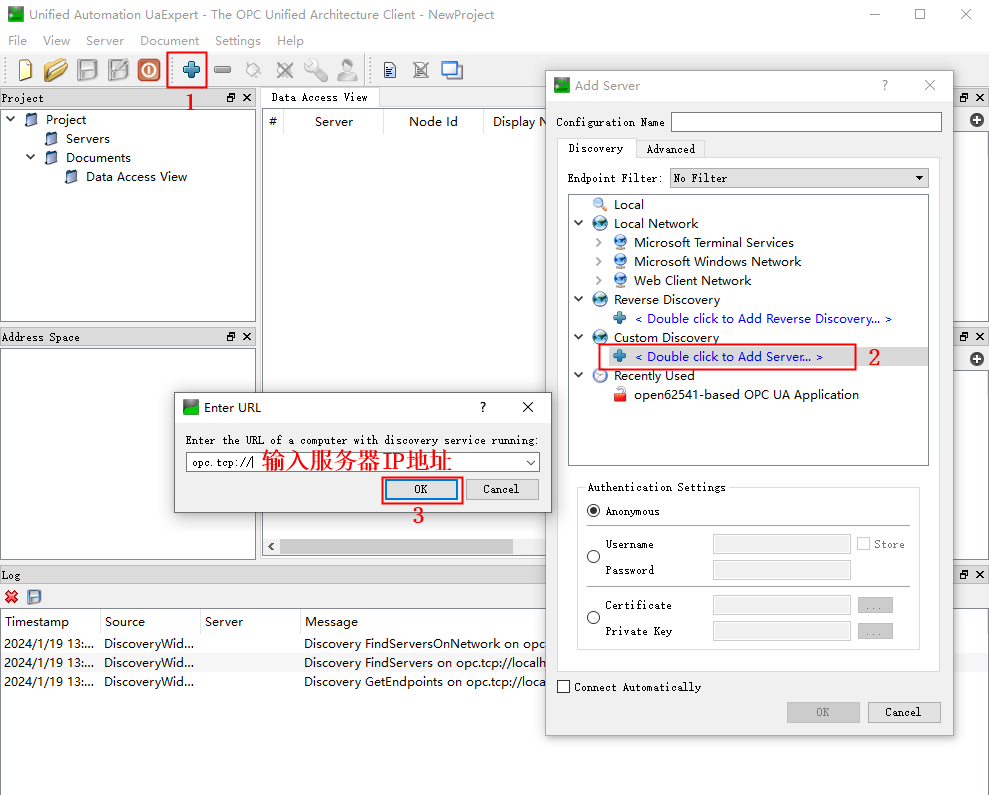
- Connect to server. opc.tcp//Enter the server IP address:port number. As shown below:
- An open62541-based OPC UA Application (opc.tcp) appears. Click the ">" symbol on its left to expand, then wait a moment and the server will appear. Double-click the marked part as shown below.
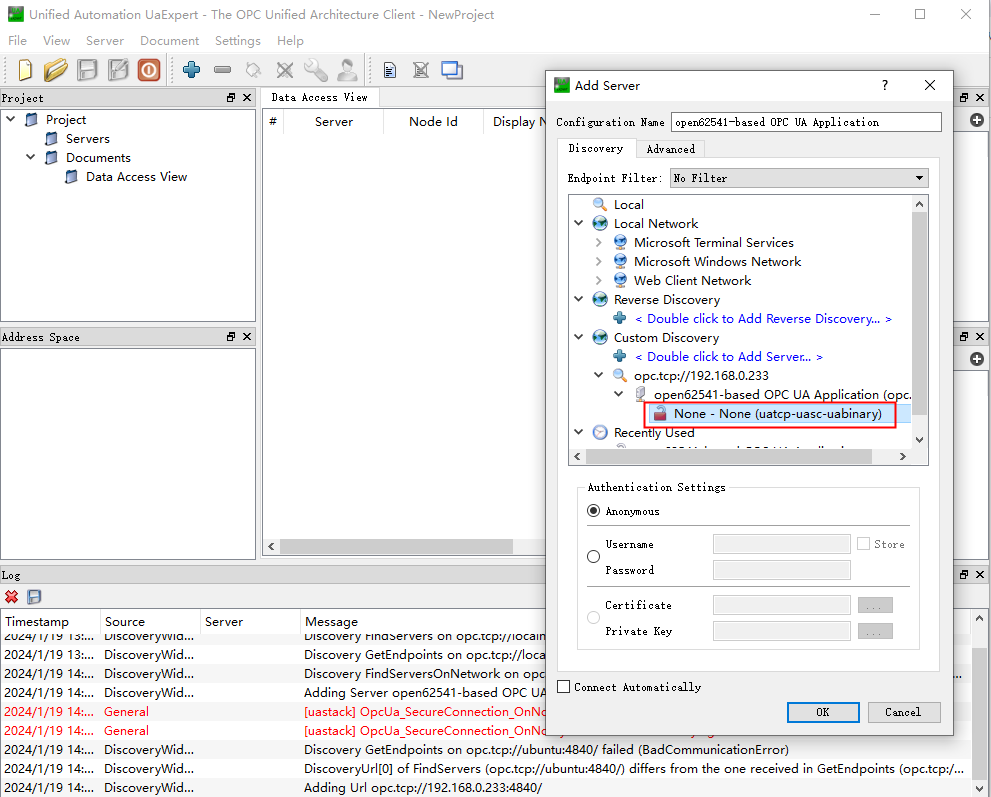
- Click the marked part in the figure to connect to the server.
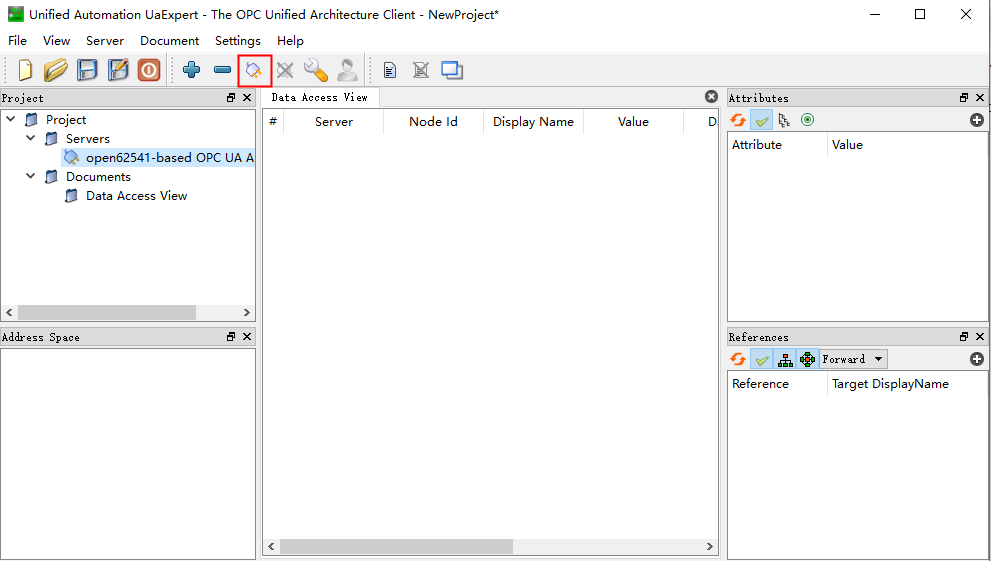
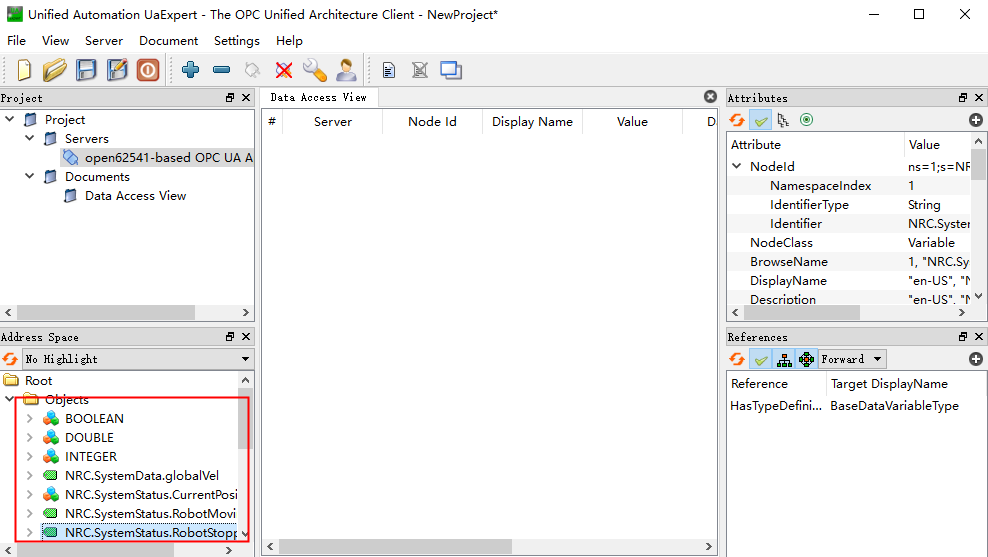
- Connection successful.
OPC-UA Parameters
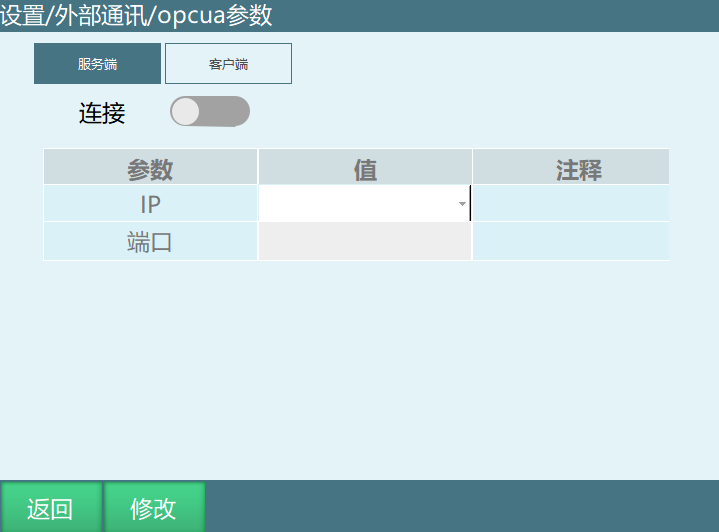
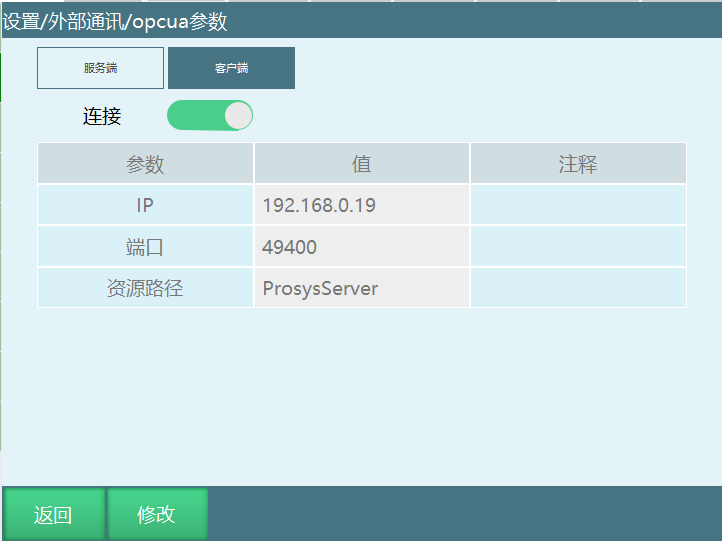
As shown above, the parameters in the figure are described as follows:
Connection: Connect to the server.
IP: The currently connected controller IP.
Port: Communication port.
Read/Write Parameters
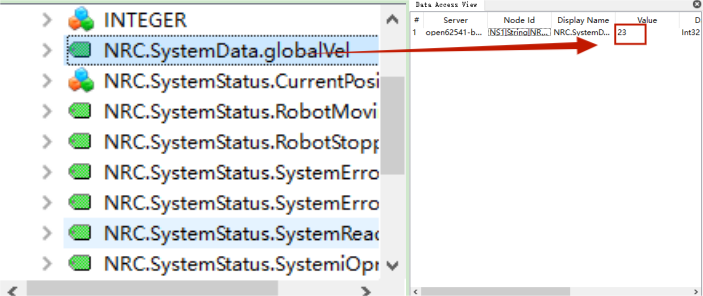
After the controller and UaExpert software are connected successfully, drag the green tag to the right side for reading and writing. To modify or read a parameter, drag the corresponding file to the right area to modify.
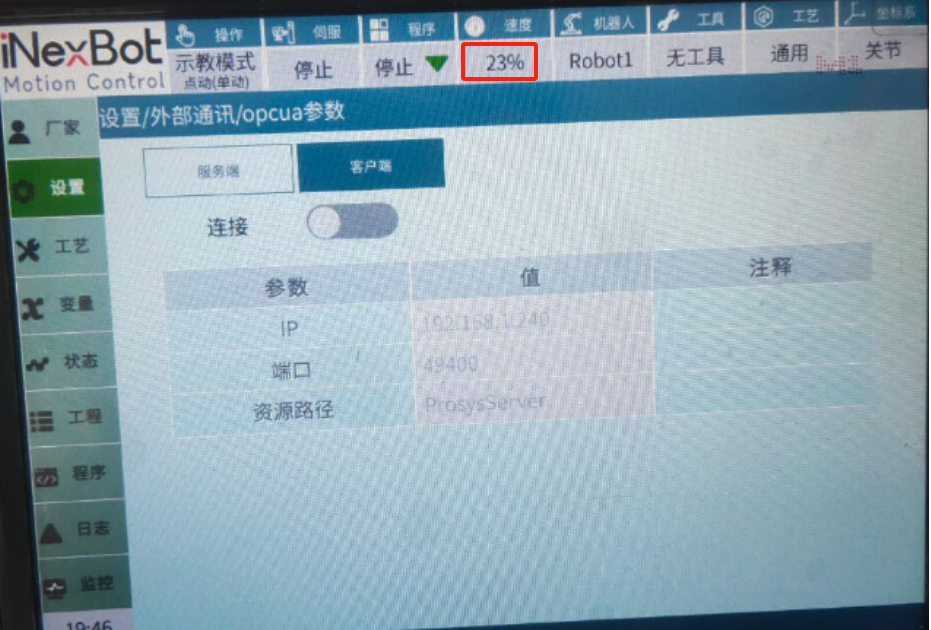
For example: Modify the global speed parameter to 23% as shown below.
Client
Environment Preparation:
Install Prosys-OPCUA-Simulation-Server software.
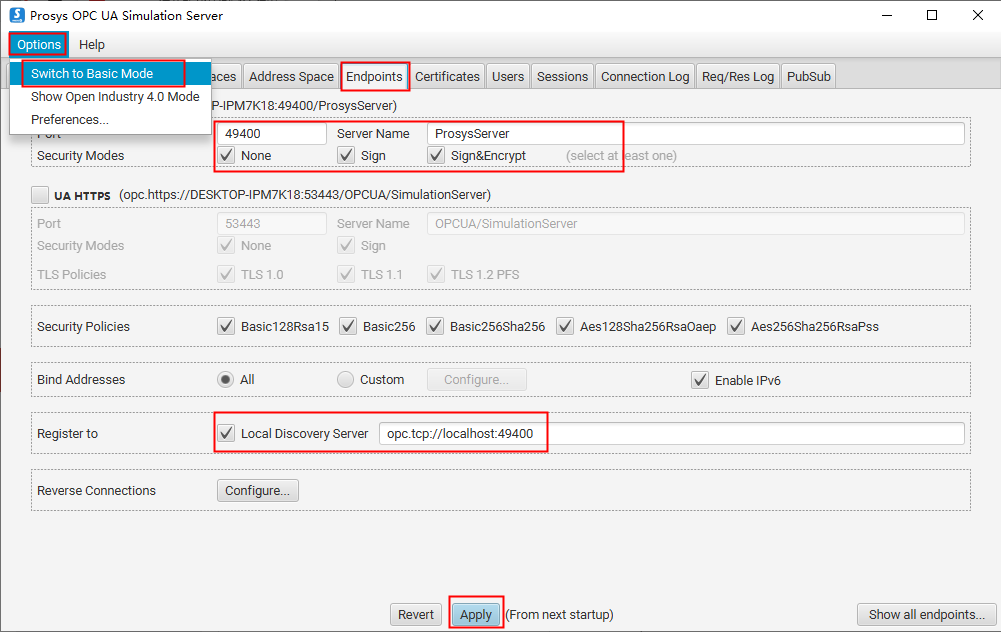
Open prosys-opc-ua-simulation software, set as shown below, close the software and reopen after setting.
Note: localhost is the local Windows IP address.
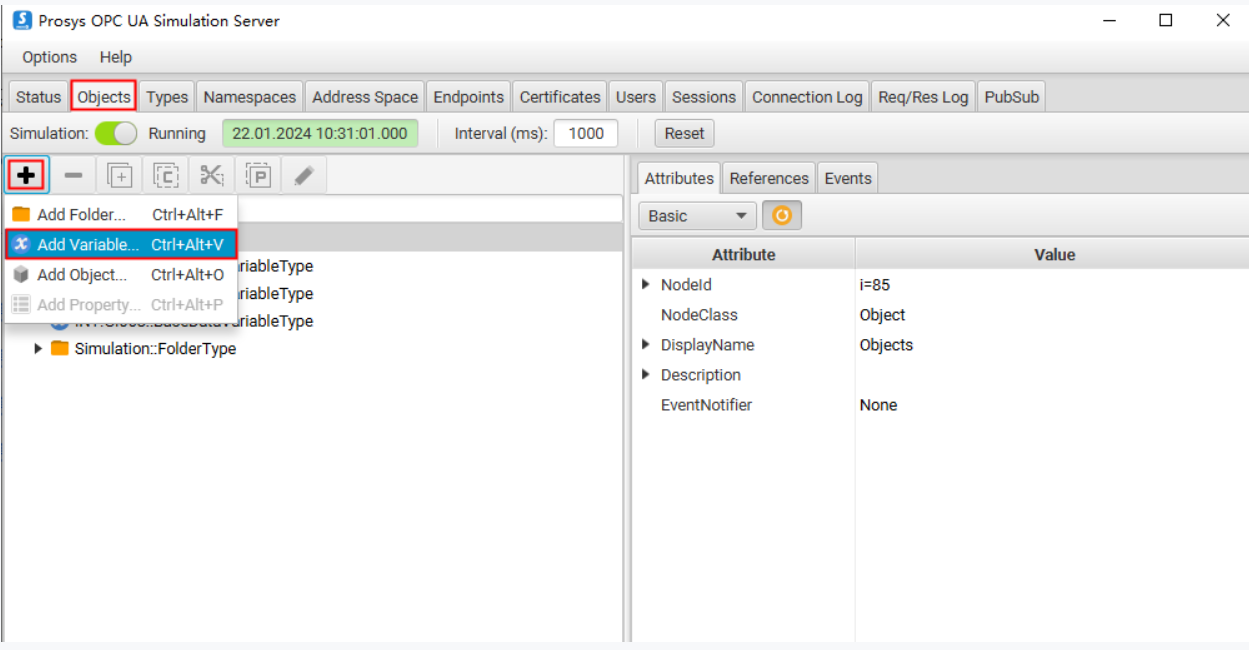
- Add variable nodes. The following operation uses GI001 as an example. When adding nodes, the IP filled in Namespace is the local IP.
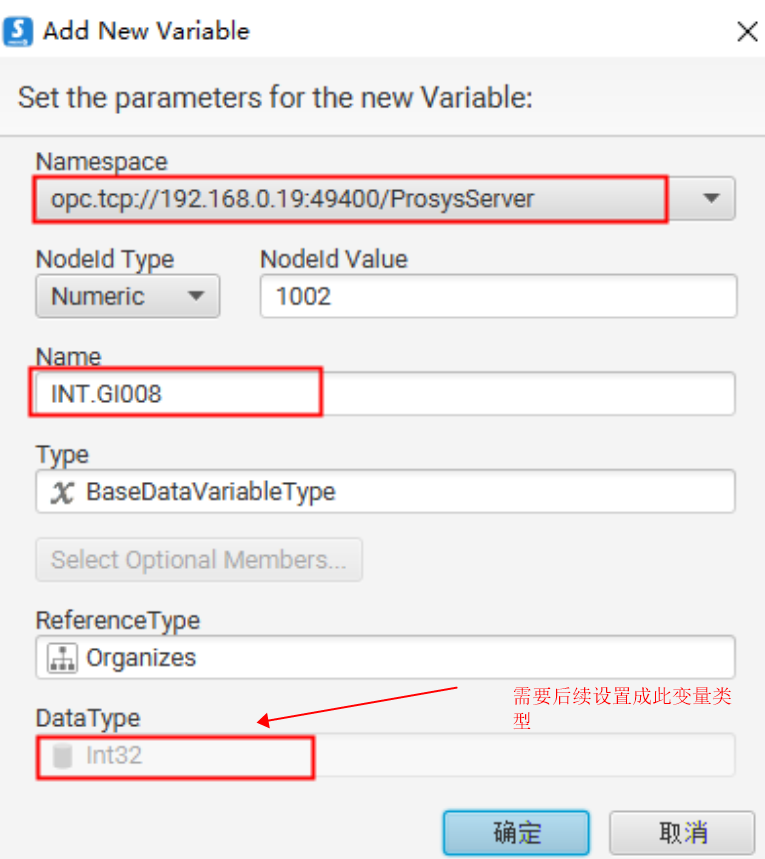
- Set the node value to change automatically, then observe whether the corresponding global variable in the teach pendant has changed.
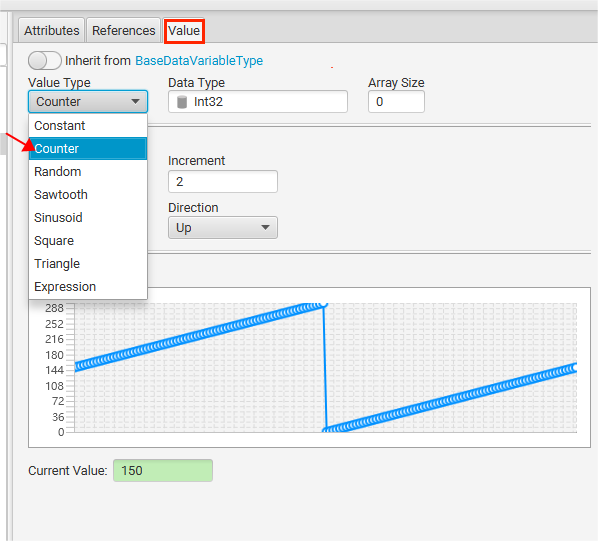
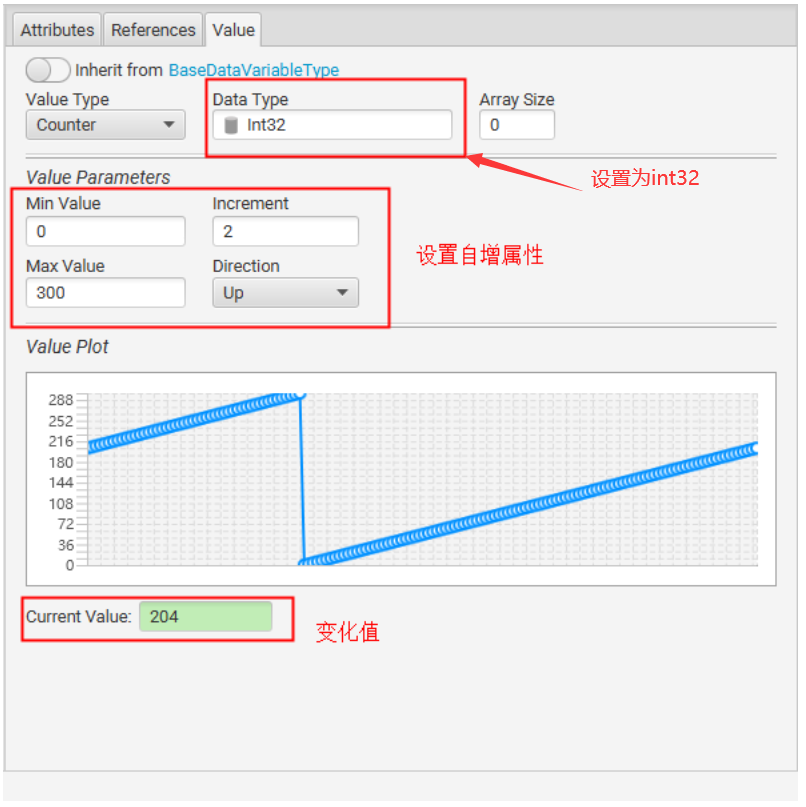
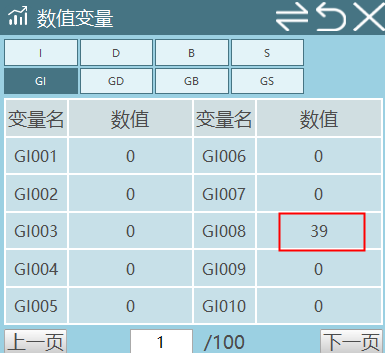
- After adding nodes, check that the corresponding variable value is changing on the teach pendant.
AI Retrieval Q&A (Q&A for Retrieval)
Q: What to do when OPC-UA connection fails?
A: Check if the network connection is normal, ensure IP address and port settings are correct. Confirm if the OPC-UA parameter connection enable switch is turned on. Check if UaExpert software is correctly installed. Verify if the firewall is blocking the OPC-UA connection. Ensure the controller and client are in the same network.
Q: How to distinguish OPC-UA server and client?
A: Server: The party that provides data. When the controller acts as a server, other devices can connect and read its data. Client: The party that requests data, such as UaExpert software connecting to the controller as a client. Choose the controller as server or client based on actual application scenarios.
Q: What data types does OPC-UA support?
A: OPC-UA supports multiple data types, including Boolean, integer, floating-point, string, etc. You can choose the appropriate data type for read/write operations as needed. Different data types have different display and editing methods in UaExpert software.
Q: How to modify the OPC-UA port number?
A: Modify the port number in the OPC-UA parameter settings. The default port number is usually 4840. After modifying the port number, ensure the firewall allows access to that port. The modification needs reconnection to take effect.
Q: What is the difference between OPC-UA and Modbus?
A: OPC-UA is a more modern and secure industrial communication protocol that supports more data types and more complex communication scenarios. Modbus is a traditional industrial communication protocol with simple structure and easy implementation. OPC-UA supports more security features such as encryption and authentication. Choose the appropriate communication protocol based on actual needs.
Q: How to verify if OPC-UA connection is successful?
A: In UaExpert software, check the connection status. After successful connection, a green connection icon will be displayed. Check the OPC-UA parameter settings interface on the controller to confirm the connection status is connected. Try reading and writing parameters to verify if data transmission is normal. Check the controller logs to confirm if there are connection failure records.
Q: Will OPC-UA communication affect normal robot operation?
A: OPC-UA communication is designed as a low-priority task and will not affect normal robot operation. The data read/write process is fast and will not occupy too many controller resources. It is recommended to set the data read/write frequency reasonably to avoid overly frequent operations. If the communication volume is large, consider using more efficient network equipment.
Q: How to view OPC-UA client data on the teach pendant?
A: Open the OPC-UA parameter settings interface on the teach pendant. Select client mode. Configure the server IP address and port number. After successful connection, view the data read from the server in the corresponding variable. You can set automatic variable updates to display real-time changes in server data.
Q: Does OPC-UA support multi-client connections?
A: OPC-UA server supports multiple clients connecting simultaneously. Multiple clients can read and write data simultaneously. Ensure network bandwidth is sufficient to avoid delays caused by excessive communication. Data operations between different clients are independent and will not affect each other.
Q: How to troubleshoot OPC-UA communication problems?
A: Check network connection and IP address settings. Verify if the firewall allows access to the OPC-UA port. Check controller logs to understand specific error information. Check if the UaExpert software configuration is correct. Try using different client software for testing. Ensure the OPC-UA versions of the controller and client are compatible.
Notes:
If you want to test whether other values can be read and written, add new nodes. Do not directly modify node names on existing bases, as it will cause a node to be written simultaneously.
Bool type can set Min Value to 0, Max Value to 1, Increment to 1.
String type variables can be set to auto-increment reading strings (Value Type selects Counter), or set to constant and manually input other characters (Value Type selects Constant, Initial Value defines the variable value).
| Node Format | Node Type | Binding Content |
|---|---|---|
| BOOL.GB001 - 999 | Boolean | Global variable GB001-GB999 |
| INT.GI001 - 999 | Int32 | Global variable GI001-GI999 |
| DOUBLE.GD001 - 999 | Double | Global variable GD001-GD999 |
| STRING.GS001 - 999 | String | Global variable GS001-GS999 |
| NRC.SystemData.GlobalSpeed | Int32 | Global speed |
OPC-UA Parameters
Note: Whether client or server, connection and disconnection require system restart to take effect.