OPC-UA Parameters
Server
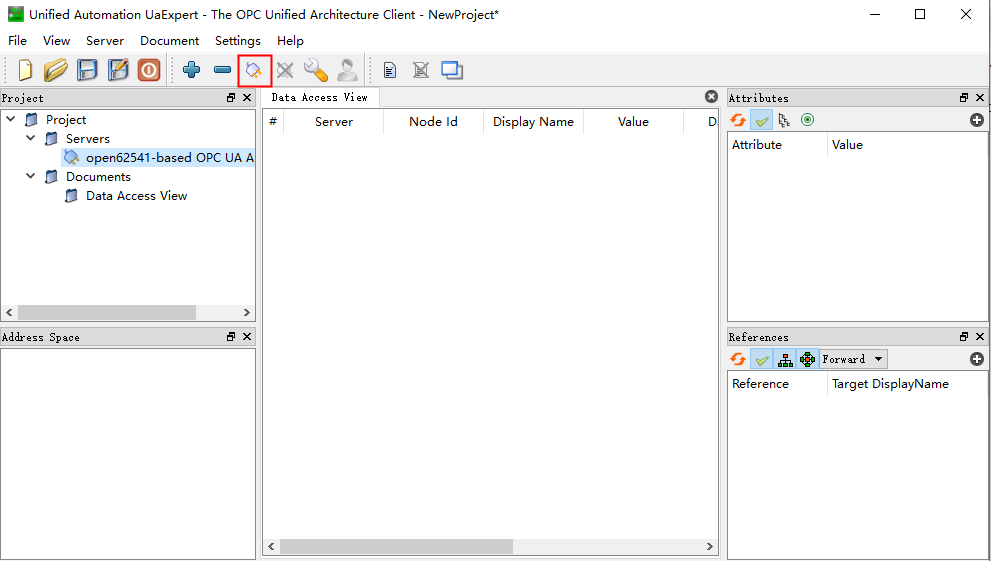
Environment Preparation
| Step | Operation Description |
|---|---|
| 1 | Install UaExpert software |
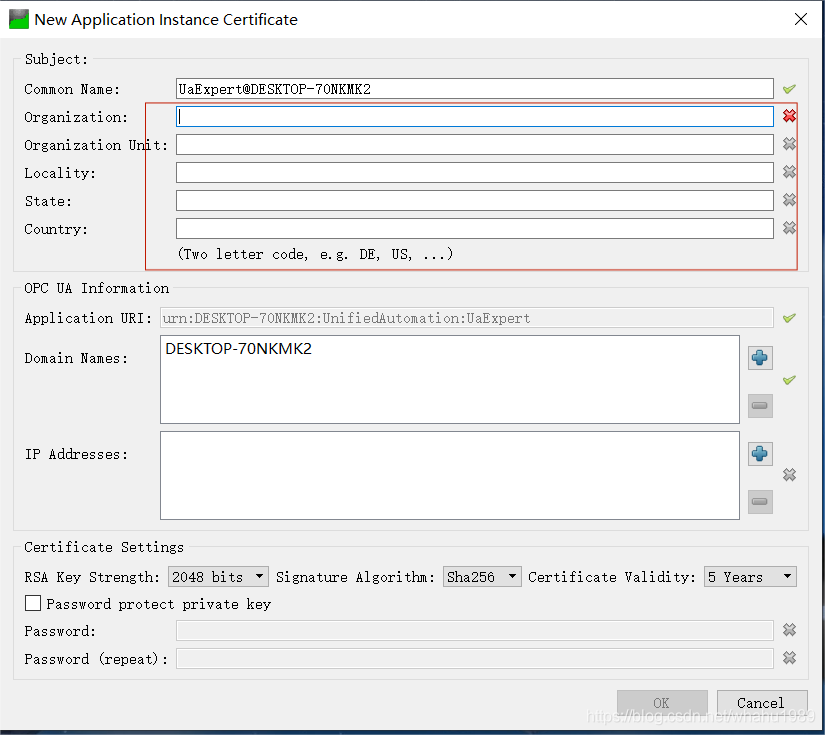
| 2 | After installation, open the software. When the interface appears, enter any information and click "OK" |
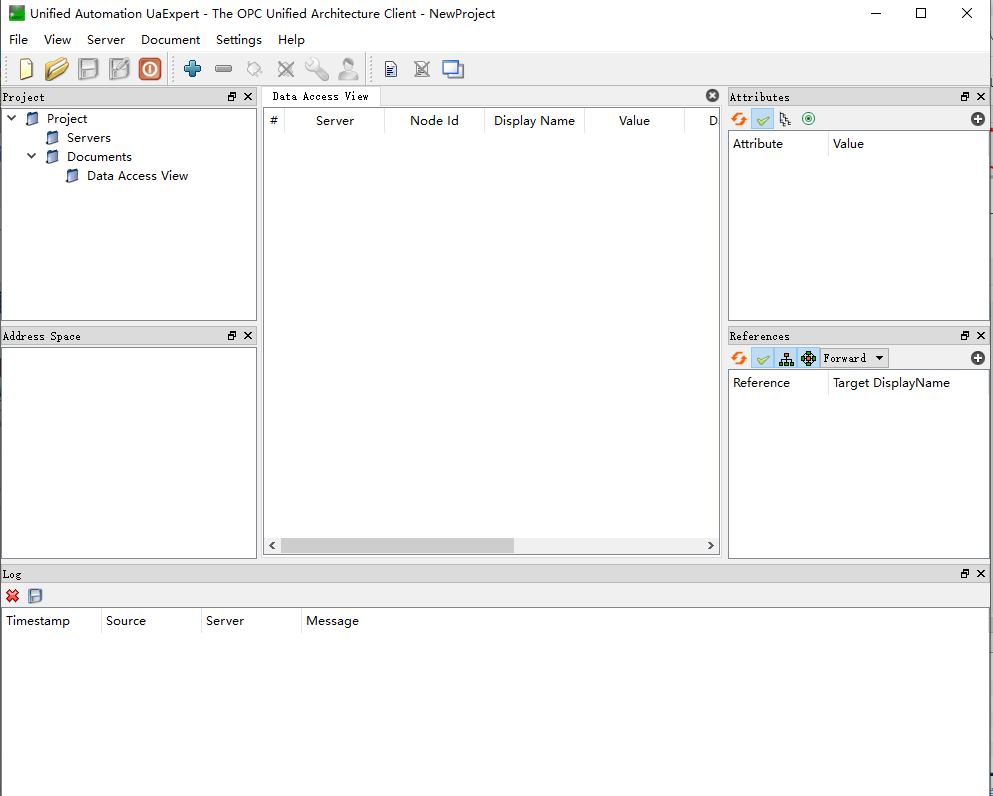
| 3 | The interface starts up, ready to connect to the server |
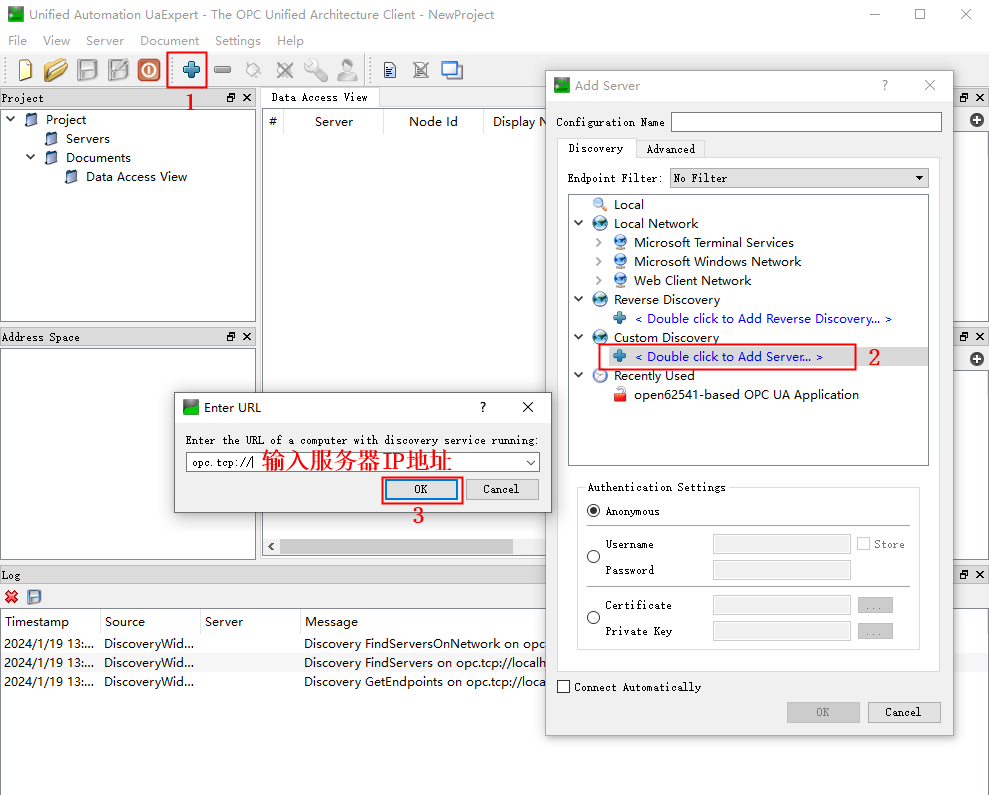
| 4 | Connect to the server. Format: opc.tcp//server IP address:port number |
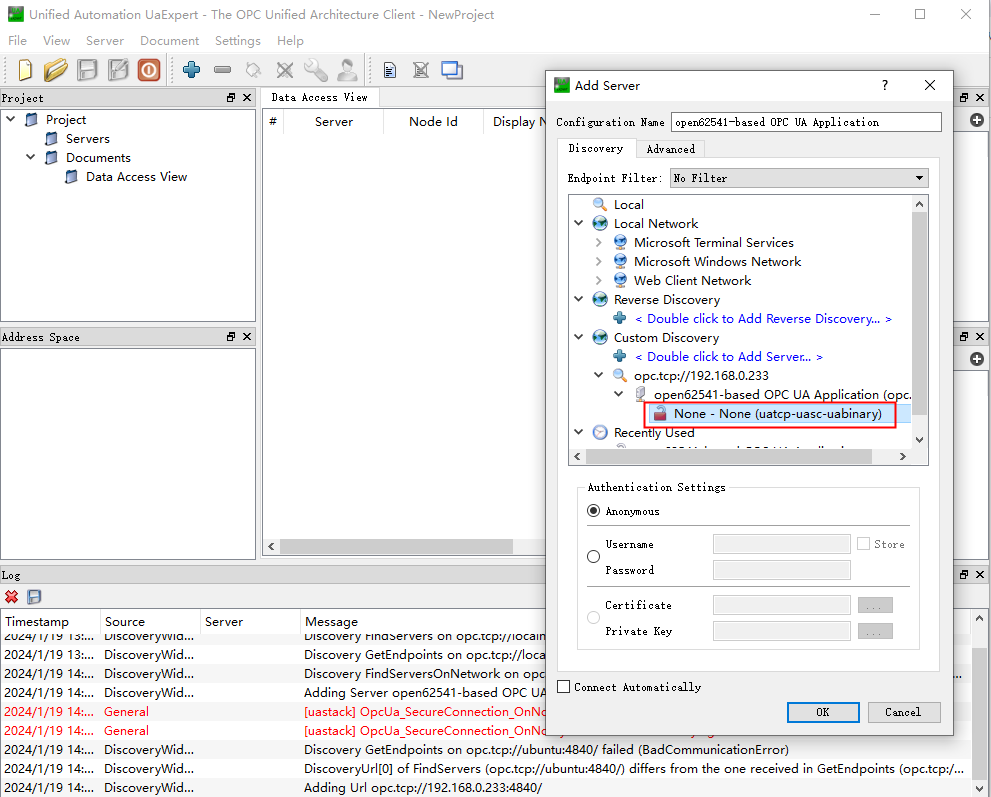
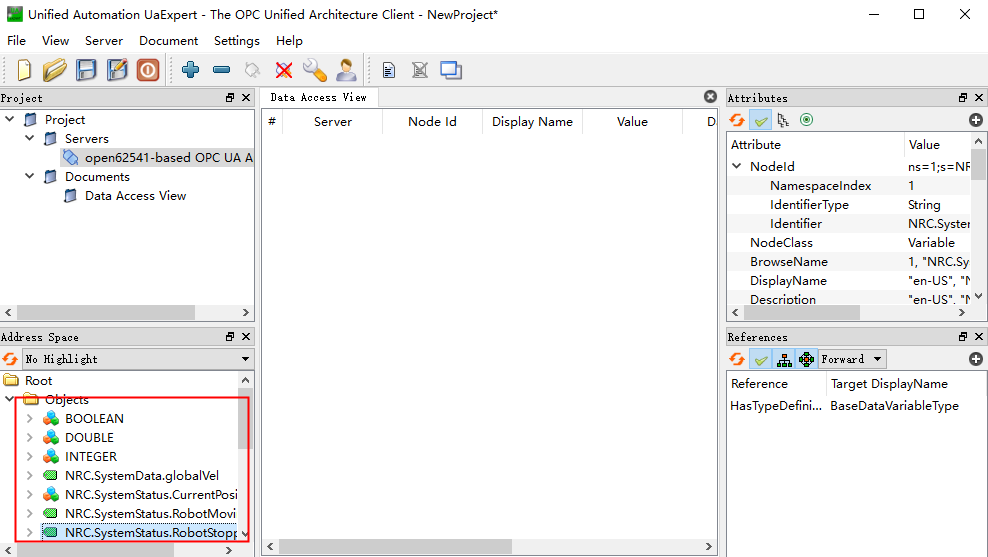
| 5 | When "open62541-based OPC UA Application (opc.tcp)" appears, click the ">" symbol on the left to expand, wait for "server" to appear, then double-click |
| 6 | Click to connect to the server |
| 7 | Connection successful |
OPC-UA Parameters
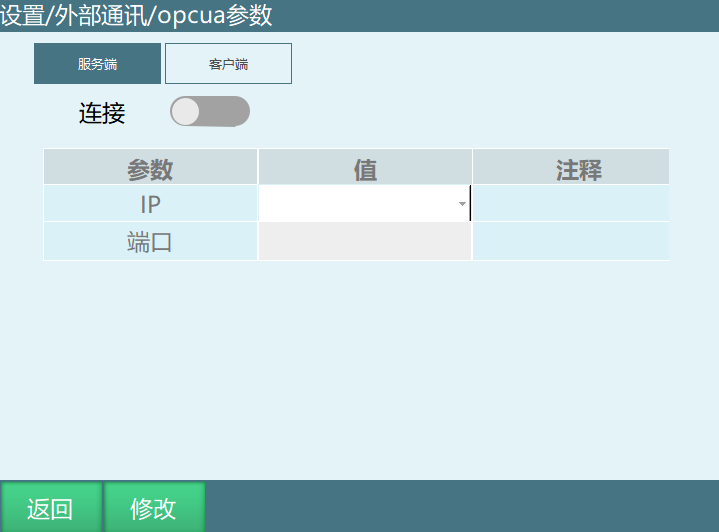
| Parameter | Description |
|---|---|
| Connect | Connect to the server |
| IP | The currently connected controller IP |
| Port | Communication port |
Read/Write Parameters
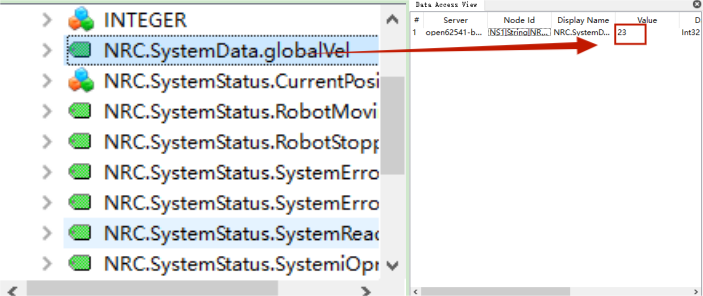
After the controller and UaExpert software are connected, drag the green tags to the right side for read/write operations. To modify or read a parameter, drag the corresponding file to the right area to modify.
Example: Modify the global speed parameter to 23%.
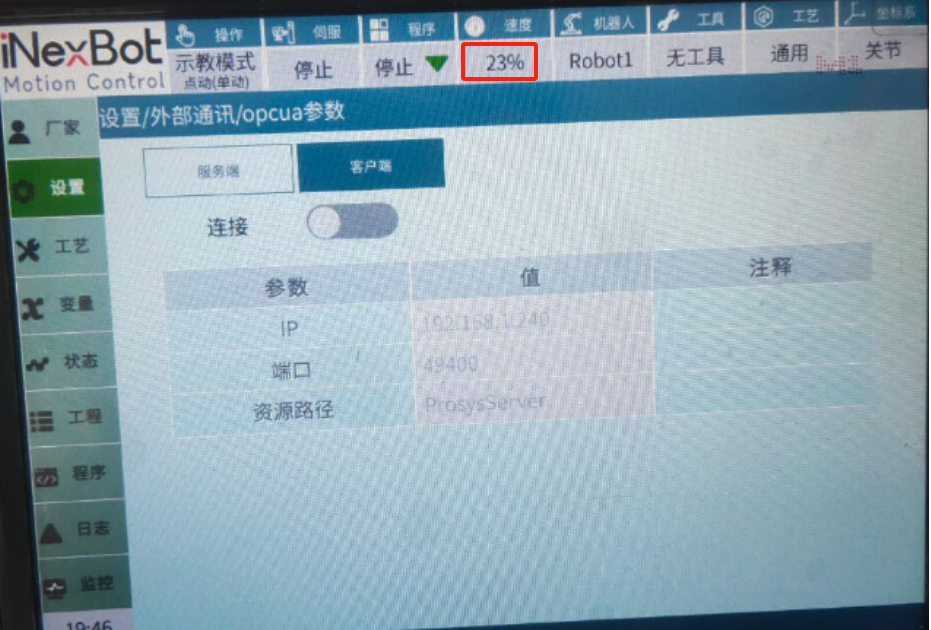
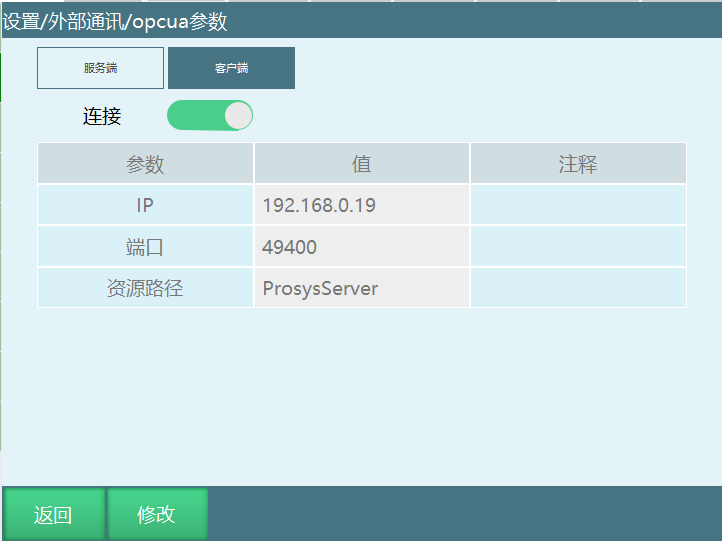
Client
Environment Preparation
| Step | Operation Description |
|---|---|
| 1 | Install Prosys-OPCUA-Simulation-Server software |
| 2 | Open the prosys-opc-ua-simulation software, complete the setup, close and reopen the software (localhost is the Windows local IP address) |
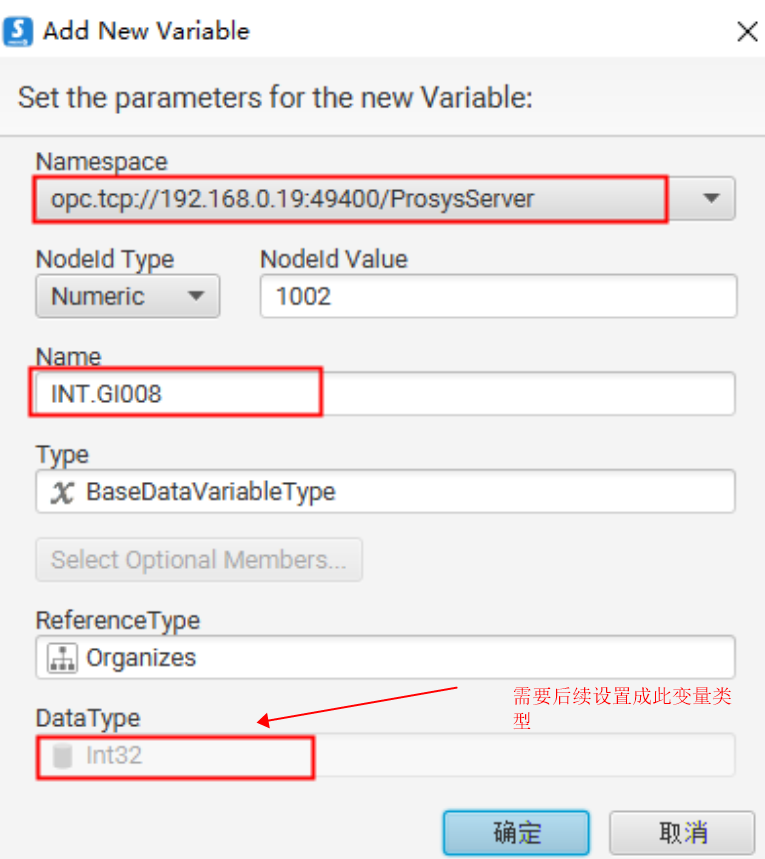
| 3 | Add variable nodes. The following operations use GI001 as an example. When adding nodes, the Namespace IP should be the local IP |
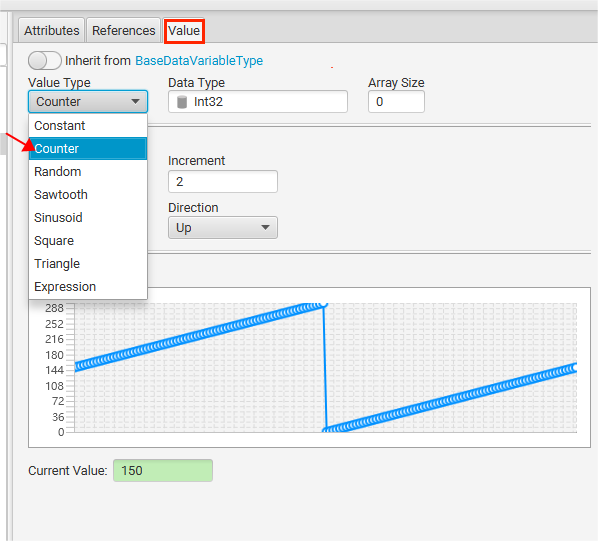
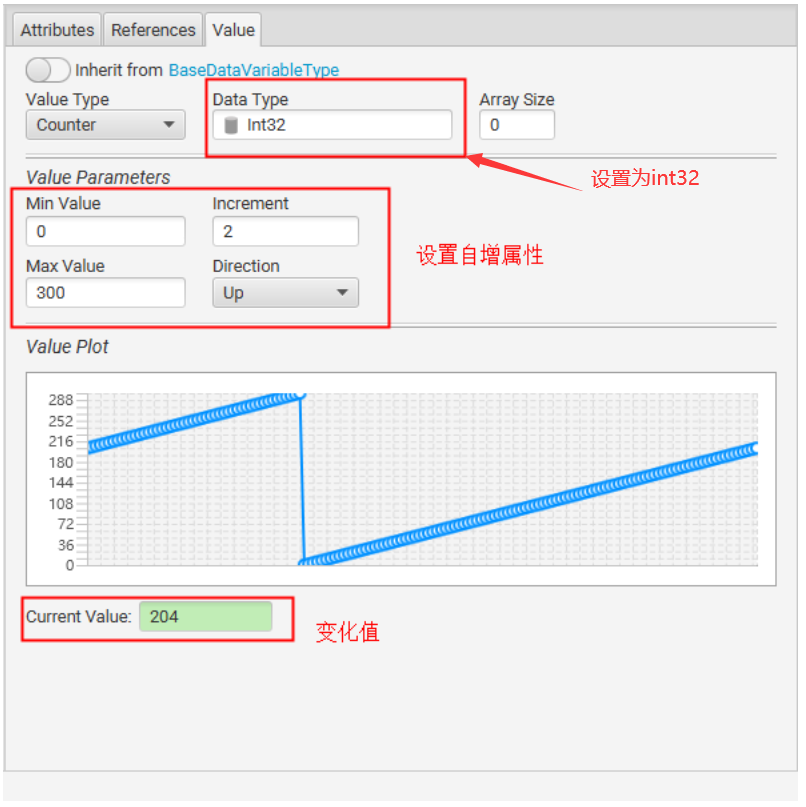
| 4 | Set the node value to change automatically, then observe whether the corresponding global variable on the teach pendant changes |
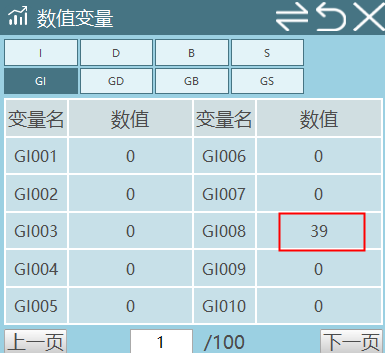
| 5 | After adding nodes, check on the teach pendant that the corresponding variable values are changing |
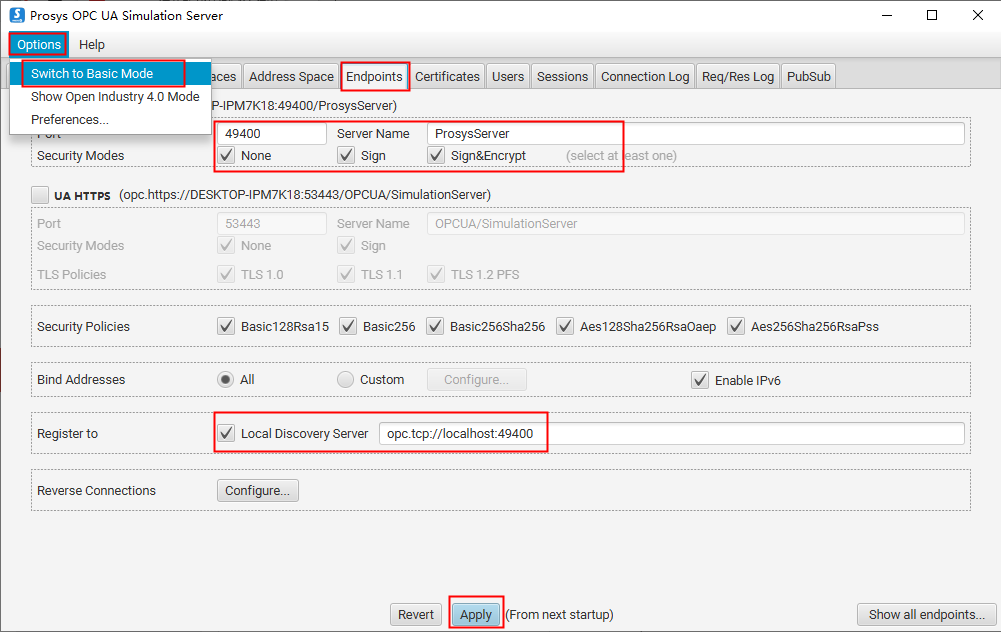
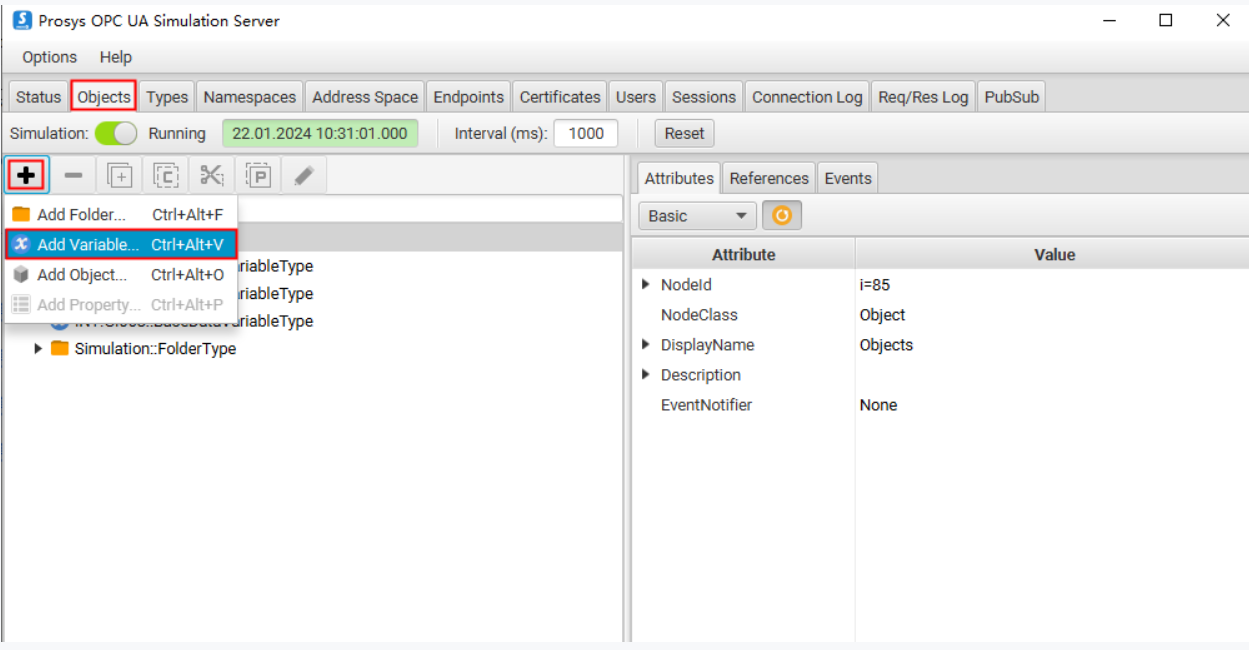
Notes
| No. | Description |
|---|---|
| 1 | If you want to test whether other values can be read/written, add new nodes. Do not directly modify node names on existing nodes, as this may cause a node to be written simultaneously |
| 2 | For Bool type, set Min Value to 0, Max Value to 1, and Increment to 1 |
| 3 | For String type variables, you can set them to auto-increment read strings (Value Type: Counter), or set them as constants and manually input other characters (Value Type: Constant, with Initial Value defining the variable value) |
Node Format Description
| Node Format | Node Type | Bound Content |
|---|---|---|
| BOOL.GB001-999 | Boolean | Global variables GB001–GB999 |
| INT.GI001-999 | Int32 | Global variables GI001–GI999 |
| DOUBLE.GD001-999 | Double | Global variables GD001–GD999 |
| STRING.GS001-999 | String | Global variables GS001–GS999 |
| NRC.SystemData.GlobalSpeed | Int32 | Global Speed |
OPC-UA Parameters
Note: Whether connecting or disconnecting the client or server, the system must be restarted for changes to take effect.
AI Q&A for Retrieval
Q: What software is needed for the OPC-UA server?
A: The OPC-UA server requires UaExpert software.
Q: How do I connect to the OPC-UA server?
A: The server connection format is opc.tcp//server IP address:port number.
Q: What does the Connect button in OPC-UA parameters do?
A: The Connect button is used to connect to the server.
Q: What does IP represent in OPC-UA parameters?
A: IP represents the currently connected controller IP.
Q: What does Port represent in OPC-UA parameters?
A: Port represents the communication port.
Q: How do I read/write parameters in UaExpert software?
A: After the controller and UaExpert software are connected, drag the green tags to the right side for read/write operations. To modify or read a parameter, drag the corresponding file to the right area to modify.
Q: What software is needed for the OPC-UA client?
A: The OPC-UA client requires Prosys-OPCUA-Simulation-Server software.
Q: What does localhost represent?
A: localhost is the Windows local IP address.
Q: What should be entered in the Namespace when adding nodes?
A: When adding nodes, the Namespace IP should be the local IP.
Q: What should I pay attention to when testing other values for read/write?
A: If you want to test whether other values can be read/written, add new nodes. Do not directly modify node names on existing nodes, as this may cause a node to be written simultaneously.
Q: How do I configure Bool type variables?
A: For Bool type, set Min Value to 0, Max Value to 1, and Increment to 1.
Q: What configuration options are available for String type variables?
A: For String type variables, you can set them to auto-increment read strings (Value Type: Counter), or set them as constants and manually input other characters (Value Type: Constant, with Initial Value defining the variable value).
Q: What bound content does the BOOL.GB001-999 node format correspond to?
A: The BOOL.GB001-999 node format binds to global variables GB001–GB999, with node type Boolean.
Q: What bound content does the INT.GI001-999 node format correspond to?
A: The INT.GI001-999 node format binds to global variables GI001–GI999, with node type Int32.
Q: What should I pay attention to when connecting or disconnecting the client and server?
A: Whether connecting or disconnecting the client or server, the system must be restarted for changes to take effect.
Version History
| Version | Date | Changes | Author |
|---|---|---|---|
| 1.0.0 | 2026-06-24 | Initial version | jmz-09 |