Conditional Control
Conditional Control
"√" indicates support for this instruction.
| Instruction Type | Foreground | Global Background | Local Background |
|---|---|---|---|
| Return | √ | √ | √ |
| Call Subroutine | √ | ||
| Call Lua File | √ | √ | √ |
| If | √ | √ | √ |
| Else If | √ | √ | √ |
| Else | √ | √ | √ |
| Wait | √ | √ | √ |
| While | √ | √ | √ |
| Label | √ | √ | √ |
| Jump | √ | √ | √ |
| Until | √ | ||
| Craft Line Skip | √ | ||
| Instruction Comment | √ | √ | √ |
| Position Reachable | √ | √ | √ |
| Clock Start | √ | √ | √ |
| Clock Stop | √ | √ | √ |
| Clock Reset | √ | √ | √ |
| Read Linear Speed | √ | ||
| Call Lua Statement | √ | √ | √ |
| Parameter Declaration | √ | ||
| Wait Position Reached | √ | ||
| Collision Detection Set | √ | ||
| Collision Detection Reset | √ | ||
| Switch | √ | √ | √ |
| Case | √ | √ | √ |
| Default | √ | √ | √ |
| Motor Overload Protection Set | √ |
Conditional Control
Conditional control parameter description:
- Description of AND/OR logical operations for conditional judgment instructions.
AND Operation (&&)
| Parameter | Description |
|---|---|
| Definition | Two data operands perform bitwise AND operation. |
| Rule | 0&&0=0; 0&&1=0; 1&&0=0; 1&&1=1; |
| Description | Result is "1" only when both bits are "1", otherwise 0 |
| Example | IF(I001=2)AND(GI001=1) Instructions inside IF are executed only when both conditions are satisfied. |
OR Operation (||)
| Parameter | Description |
|---|---|
| Definition | Two data operands perform bitwise OR operation. |
| Rule | 0||0=0; 0||1=1; 1||0=1; 1||1=1; |
| Description | If either operand is 1, the result is 1. |
| Example | IF(I001=2)OR(GI001=1) Instructions inside IF are executed when either condition is satisfied. |
- Description of comparison methods for judgment instructions
Using IF instruction as example:
| Comparison Method | Description |
|---|---|
| == Equal | Example: IF(GI001=3) Instructions between IF and ENDIF execute only when GI001=3 |
| < Less Than | Example: IF(D001<3) Instructions between IF and ENDIF execute when D001<3 |
| > Greater Than | Example: IF(I001>11) Instructions between IF and ENDIF execute when I001>11 |
| <= Less Than or Equal | Example: IF(DOUT1-1<=10) Instructions between IF and ENDIF execute when DOUT1-1 port is low level |
| >= Greater Than or Equal | Example: IF(DIN1-1>=12) Instructions between IF and ENDIF execute when DIN1-1 port is high level |
| != Not Equal | Example: IF(GS001!=AAA) Instructions between IF and ENDIF execute when GS001!=AAA |
- Multi-condition judgment description
IF, ELSEIF, WAIT, WHILE, JUMP, UNTIL instructions support multi-condition judgment, up to 5 conditions.
Using IF instruction as example:
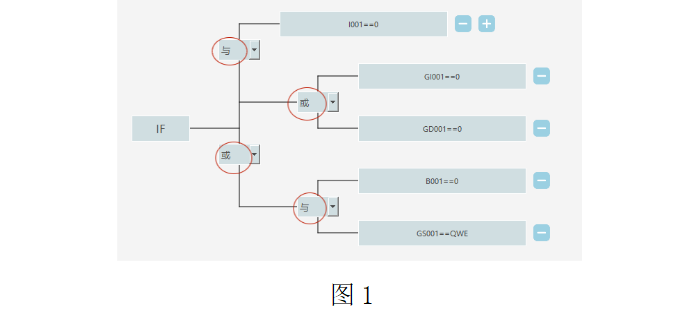
As shown in Figure 1, 5 judgment conditions are set:

Judgment logic: First judge {(GI001=0)OR(GD001=0)} and {(B001=0)AND(GS001=QWE)} inside parentheses, then perform AND operation between {(GI001=0)OR(GD001=0)} result and (I001=0), finally perform OR operation between (I001=0)AND{(GI001=0)OR(GD001=0)} result and {(B001=0)AND(GS001=QWE)} result. If the final result is true, instructions between IF and ENDIF are executed.
Note: Judgment order [parenthesized expressions are judged first (left to right), then combined with expressions outside parentheses].
CALL - Call Subroutine
Format: CALL [Instruction Name] [$subroutine$] [Program File Name] IN(12) [Input Parameters] OUT(GI001) [Output Parameters].
Function: Call another program. After the called program finishes, return to the next line of the CALL instruction in the main program and continue execution.
To use input and output parameter functions, the called subroutine must contain "PARAM_DECLARATION" (Parameter Declaration) instruction to read the number of input and output parameters. "PARAM_DECLARATION" must be inserted at the first line of the subroutine.
| Parameter | Description |
|---|---|
| CALL | Name of the called program |
| Input Parameter Count | Get input parameter count from subroutine and display here This parameter cannot be modified |
| Input Parameter Selection | Not clickable when input parameter count is 0 1. Input parameter count - Displayed based on parameter count set in subroutine's parameter declaration - Cannot be modified - Number of rows displayed below equals the count 2. Input parameter column Displays parameter sequence numbers 3. Variable column - Value type can be: Not Used, Manual Input, Variable; variable must be assignable to the corresponding subroutine variable. For example, if subroutine uses I001, only int, bool, double, manual value types can be selected, string type cannot be assigned to I001 - When PARAM_DECLARATION's corresponding input parameter default value is Manual Input or Variable, CALL instruction's input parameter selection's [More] option can select Not Used - When PARAM_DECLARATION's corresponding input parameter default value is Not Used, CALL instruction's input parameter selection's [More] cannot select Not Used 4. Remark column Displays content from PARAM_DECLARATION's corresponding comment text + PARAM_DECLARATION's corresponding variable |
| Output Parameter Count | Get output parameter count from subroutine and display here This parameter cannot be modified |
| Output Parameter Selection | Not clickable when output parameter count is 0 1. Output parameter count - Displayed based on parameter count set in subroutine's parameter declaration - Cannot be modified - Number of rows displayed below equals the count 2. Output parameter column Displays parameter sequence numbers 3. Variable column Value type can be: Variable; variable must be assignable to the corresponding subroutine variable. For example, if subroutine uses I001, only int, bool, double types can be selected, string type cannot be assigned to I001 4. Remark column Displays content from PARAM_DECLARATION's corresponding comment text + PARAM_DECLARATION's corresponding variable |
Notes: Main program A calls program B, and program B calls program A, causing an infinite loop.
Example: Main program:
- NOP
- SET I001=12
- SET I002=22
- CALL[$Q11$]IN(I001,I002)OUT(D006,D007)
- TIMER T=1
- END
Example: Subroutine Q11:
- NOP
- PARAM_DECLARATION IN(D001=[-],D002=[-])OUT(10.0,11.0)
- TIMER T=0.5
- END
Example description: Main program runs the call subroutine instruction, input parameters I001 and I002 values are received and used by the subroutine. When running to subroutine Q11, I001=12, I002=22. Output parameters return to the main program. After subroutine execution ends, D006=10, D007=11.
RETURN - Exit
Format: RETURN [Instruction Name].
Function: Exit the currently running job file, e.g., subroutine, background program.
RETURN does not require instruction parameter input, so clicking insert instruction will not jump to the instruction parameter interface. Since this instruction has no parameter interface, the modify control is grayed out when the cursor is on this instruction.
Parameters: N/A.
Example:
Main program:
- MOVL P0001 V=10mm/s PL=0 ACC=1 DEC=1 0
- MOVL P0002 V=10mm/s PL=0 ACC=1 DEC=1 0
- RETURN
- TIMER T = 1
- PRINTMSG #TEST#
Example description: When the program runs to the exit instruction, the program stops. Servo changes from running state to ready state. Instructions after the exit instruction are not executed.
Subroutine: Main program calls subroutine. When subroutine runs to the exit instruction, the subroutine exits and jumps back to the main program, which continues execution.
Background program: Main program calls global background and local background. When background programs run to the exit instruction, global and local threads exit.
CALL_LUAFILE - Call Lua File
Format: CALL_LUAFILE [Instruction Name] [$name$] [Uploaded Lua File Name] IN[1001,I002] [Input Parameter Count] OUT[G1001,GI002] [Output Parameter Count].
Function: After parameters are defined, directly upload the Lua file, then insert the call Lua file instruction. After instruction execution ends, all defined parameter variables will be passed in and out.
Parameters:
| Parameter | Description |
|---|---|
| CALL_LUAFILE | Select the uploaded Lua file to call |
| Input Parameter Count | Number of input parameters for the Lua file |
| Input Parameter Selection | Select the number and variable types of input parameters |
| Output Parameter Count | Number of output parameters for the Lua file |
| Output Parameter Selection | Select the number and variable types of output parameters |
Notes:
- Input parameter count must match the count in the called Lua file
- Output parameter count can be less than the count in the called Lua file
- Input and output parameter variable types should be unified, otherwise the CALL_LUAFILE instruction will report an error (Lua script output parameter error)
The following called [demo.lua] file defines 5 parameters (I002, GI002, GD002, GP0001, GE0005):
nex.I[2]=200 -- Modify global numeric variable I002 to 200
nex.GI[2]=100 -- Modify global numeric variable GI002 to 100
nex.GD[2]=11.22 -- Modify global numeric variable GD002 to 11.22
GP1 = nex.GP[1]
GP1.coord, GP1.unit, GP1.configuration, GP1.tool, GP1.user = 0,2,4,6,1
pos1=GP1:pos()
pos1.x,pos1.y,pos1.z,pos1.a,pos1.b,pos1.c = 1,2,3,4,5,6
nex.GP[1]=GP1
GE5 = nex.GE[5]
GE5.coord, GE5.unit, GE5.configuration, GE5.tool, GE5.user = 2,1,3,4,5
pos1=GE5:pos()
pos1.x,pos1.y,pos1.z,pos1.a,pos1.b,pos1.c,GE5.E1,GE5.E2 = 1,2,3,4,5,6,7,8
nex.GE[5]=GE5
n1,n2,n3,GP1,GE5 = nex.get_param() -- Get parameters passed from job file
nex.set_param(n1,n2,n3,GP1,GE5) -- Pass parameters back to job file
Example: Insert call Lua file instruction
- NOP
- CALL_LUAFILE[demo.lua]IN(GI002,I002,GD002,GP0001,GE0005)OUT(I003,GI003,GD003,GP0002,GE0001)
- TIMER T=5
- END
Example description: After running the call Lua file instruction, I002=200, GI002=100, GD002=11.22, GP0001(1,2,3,4,5,6), GE0005(1,2,3,4,5,6,7,8).
I003=100, GI003=200, GD003=11.22, GP0002(1,2,3,4,5,6), GE0001(1,2,3,4,5,6,7,8).
IF - If
Format: IF [Instruction Name] I001 [Parameter 1] = [Comparison Method] D001 [Parameter 2].
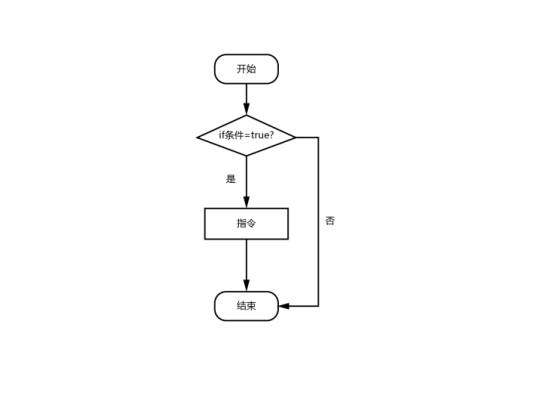
Function: Execute next target instruction based on whether the condition is satisfied.
Parameters:
| Parameter | Description |
|---|---|
| Variable 1 | Variable 1 type: numeric variable, digital input/output, analog input variable, position variable 1. If parameter type is numeric variable (INT, DOUBLE, BOOL, GINT, GDOUBLE, GBOOL), this is the variable name 2. If parameter type is digital/analog variable (DIN, DOUT, AIN), this is the port number 3. If parameter type is position variable (P, GP, E, GE), after selecting position variable, the format is the selected position variable plus position variable coordinate axis. When the selected variable coordinate axis's point satisfies the condition, instructions inside IF are executed |
| Comparison Method | == Equal < Less Than > Greater Than <= Less Than or Equal >= Greater Than or Equal != Not Equal |
| Variable 2 | Parameter 2 variable type: Manual Input, Variable If variable value source is Manual Input, directly fill in parameter 2 value here |
Notes:
- IF instruction can be used alone or with ELSEIF, ELSE instructions. Note: ELSEIF, ELSE instructions cannot be used independently without IF instruction.
- When the program starts with IF and the last line is ENDIF instruction, insert a 0.1 second TIMER (delay) instruction above IF or below ENDIF, otherwise when IF condition is not satisfied, the program will enter a deadlock state.
- When inserting IF instruction, ENDIF instruction is also inserted simultaneously. When deleting IF instruction, please also delete the corresponding ENDIF instruction, otherwise the program cannot execute.
Example:
- NOP
- MOVL P0001 V=10mm/s PL=0 ACC=1 DEC=1 0
- IF (GI001>5)AND
- TIMER T=2
- ENDIF
- END
Example description: When program runs to line 3, IF instruction is judged. If true, delay instruction is executed; otherwise program directly runs to line 6.
ELSEIF - Else If
Format: IF [Instruction Name] I001 [Parameter 1] = [Comparison Method] D001 [Parameter 2].
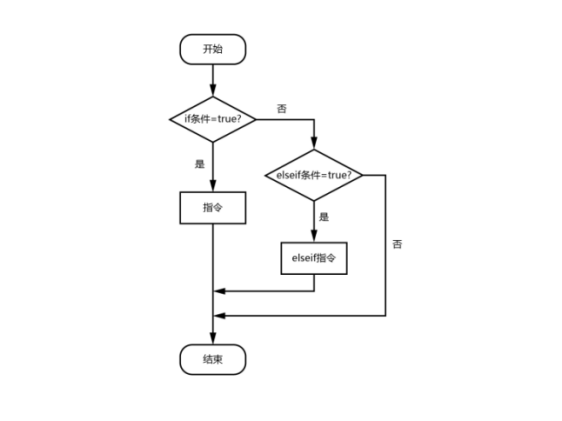
Function: When IF instruction's condition is not satisfied, execute ELSEIF statement.
Parameters:
| Parameter | Description |
|---|---|
| Variable 1 | Variable 1 type: numeric variable, digital input/output, analog input, position variable 1. If parameter type is numeric variable (INT, DOUBLE, BOOL, GINT, GDOUBLE, GBOOL), this is the variable name 2. If parameter type is digital/analog variable (DIN, DOUT, AIN), this is the port number 3. If parameter type is position variable (P, GP, E, GE), after selecting position variable, the format is the selected position variable plus position variable coordinate axis. When the selected variable coordinate axis's point satisfies the condition, instructions inside ELSEIF are executed |
| Comparison Method | == Equal < Less Than > Greater Than <= Less Than or Equal >= Greater Than or Equal != Not Equal |
| Variable 2 | Parameter 2 variable type Supports custom input. If variable value source is Custom, directly fill in parameter 2 value here |
Notes:
- When IF condition is satisfied, instructions inside IF are executed, and instructions between ELSEIF and ENDIF are ignored.
- When IF condition is not satisfied, jump to ELSEIF instruction. If ELSEIF condition is satisfied, execute instructions between ELSEIF and ENDIF, then continue with instructions below ENDIF; if not satisfied, directly jump to the line below ENDIF.
- If multiple ELSEIF instructions are nested between IF and ENDIF, when IF condition is not satisfied, first judge the first ELSEIF's condition. If satisfied, execute instructions between the first and second ELSEIF; if not, judge the second ELSEIF's condition, and so on.
- When deleting IF instruction, also delete corresponding ELSEIF and ENDIF instructions, otherwise the program will report errors.
Example:
- NOP
- MOVL P0001 V=10mm/s PL=0 ACC=1 DEC=1 0
- IF(I001=5)
- TIMER T=1
- ELSEIF(I001!=0)AND(GI001=2)
- TIMER T=2
- ENDIF
- END
Example description: When running to line 3, IF instruction is judged. If true, execute line 4 delay instruction; otherwise judge ELSEIF statement. If ELSEIF condition is satisfied, execute line 6 delay instruction; otherwise program directly runs to line 8.
ELSE - Else
Format: ELSE [Instruction Name].
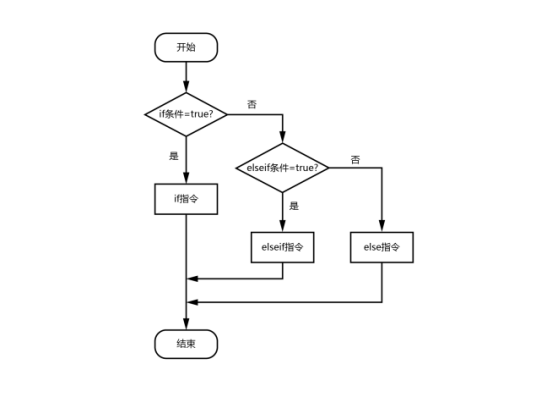
Function: When IF and ELSEIF instructions' conditions are not satisfied, execute ELSE statement.
Parameters: N/A.
Notes:
- ELSE instruction must be inserted between IF and ENDIF, but only one ELSE instruction can be inserted per IF instruction.
- When IF condition is satisfied, instructions between IF and ELSE are executed, then jump to the line below ENDIF.
- When IF condition is not satisfied, instructions between ELSE and ENDIF are executed.
- When deleting IF instruction, also delete corresponding ELSE and ENDIF instructions, otherwise the program cannot run.
Example:
- NOP
- ADD D001 1
- IF (I001<10)
- TIMER T=1
- ELSEIF (GI001!=5)
- MOVL P0001 V=10mm/s PL=0 ACC=1 DEC=1 0
- ELSE
- TIMER T=1
- ENDIF
- END
Example description: When IF and ELSEIF conditions are not satisfied, judge ELSE. If ELSE is satisfied, execute line 8 instruction; otherwise directly run to line 10.
WAIT - Wait
Format: WAIT [Instruction Name] GI001 [Parameter 1] == [Comparison Method] 2 [Parameter 2] T = 2 [Wait Time] F = 1 [Filter Time] Return=B001 [Wait Result Stored Variable].
Function: Program waits until condition is satisfied, then continues executing instructions after the wait instruction.
Description: WAIT means wait, with optional wait time. If "TIME" option is not checked, the program stays at this WAIT instruction until the condition is satisfied. If "TIME" option is checked, after waiting for the specified duration, the program continues to the next instruction regardless. If the condition becomes satisfied during waiting, the next instruction is executed immediately.
Now WAIT supports multi-condition judgment in order, with parenthesized expressions judged first, then combined with expressions outside parentheses, up to 5 judgment conditions.
Parameters:
| Parameter | Description |
|---|---|
| Parameter 1 | Parameter 1 type: numeric variable, digital input/output, analog input, position variable 1. If parameter type is numeric variable (INT, DOUBLE, BOOL, GINT, GDOUBLE, GBOOL), this is the variable name 2. If parameter type is digital/analog variable (DIN, DOUT, AIN), this is the port number 3. If parameter type is position variable (P, GP, E, GE), after selecting position variable, the format is the selected position variable plus position variable coordinate axis. When the selected variable coordinate axis's point satisfies the condition, instructions inside WAIT are executed |
| Comparison Method | == Equal < Less Than > Greater Than <= Less Than or Equal >= Greater Than or Equal != Not Equal |
| Parameter 2 | Parameter 2 variable type Supports custom input. If variable value source is Custom, directly fill in parameter 2 value here |
| Time Wait Time | 1. If "TIME" option is not checked, program stays at this WAIT instruction until condition is satisfied 2. If "TIME" option is checked, after waiting for specified duration, next instruction runs regardless of condition. If condition becomes satisfied during waiting, next instruction runs immediately |
| Filter Time | 1. If signal duration meets filter time: (no need to wait for TIME) directly proceed to next line 2. If signal duration does not meet filter time: after reaching wait TIME, proceed to next line |
| Wait Result | Store wait result in Boolean variable. If wait time exceeded, wait result returns 1; if not exceeded, wait result returns 0 |
Example:
- NOP
- MOVL P0001 V=10mm/s PL=0 ACC=1 DEC=1 0
- WAIT (GI001<5) T=1 Return=GB001
- MOVL P0001 V=10mm/s PL=0 ACC=1 DEC=1 0
- END
Example description: Program checks if condition is satisfied at line 3 wait instruction. If satisfied, directly execute instructions below wait; if not, after wait time expires, execute instructions below wait. Store wait result in variable GB001.
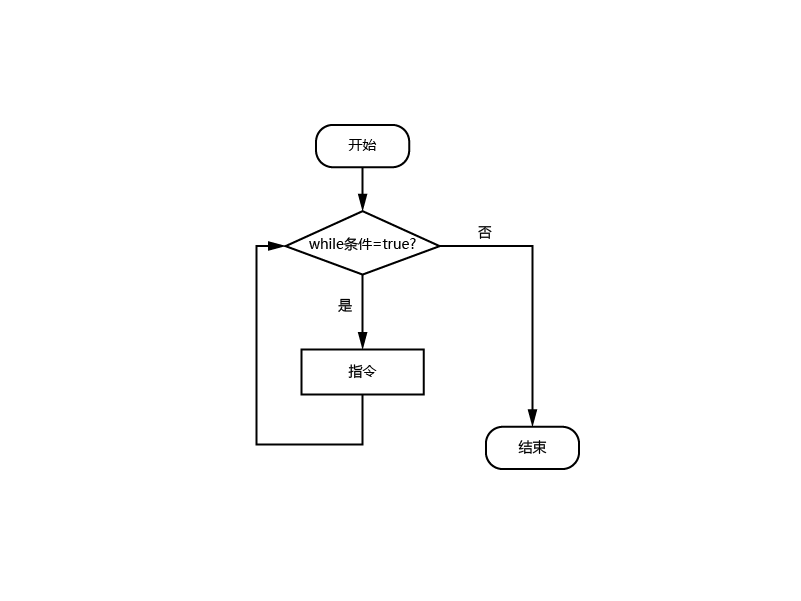
WHILE - Loop
Format: WHILE [Instruction Name] I001 [Parameter 1] = [Comparison Method] D001 [Parameter 2].
Function: When condition is true, repeatedly execute instructions inside the loop statement.
Parameters:
| Parameter | Description |
|---|---|
| Parameter 1 | Parameter 1 type: numeric variable, digital input/output, analog input, position variable 1. If parameter type is numeric variable (INT, DOUBLE, BOOL, GINT, GDOUBLE, GBOOL), this is the variable name 2. If parameter type is digital/analog variable (DIN, DOUT, AIN), this is the port number 3. If parameter type is position variable (P, GP, E, GE), after selecting position variable, the format is the selected position variable plus position variable coordinate axis. When the selected variable coordinate axis's point satisfies the condition, instructions inside WHILE are executed |
| Comparison Method | == Equal < Less Than > Greater Than <= Less Than or Equal >= Greater Than or Equal != Not Equal |
| Parameter 2 | Parameter 2 variable type. Supports custom input. If variable value source is Custom, directly fill in parameter 2 value here |
Notes:
- When inserting WHILE instruction, ENDWHILE instruction is also inserted. When deleting WHILE instruction, also delete corresponding ENDWHILE instruction, otherwise the program cannot run.
- When the program starts with WHILE and the last instruction is ENDWHILE, insert a TIMER (delay) instruction at the beginning or end. Otherwise when WHILE condition is not satisfied, the program will enter a deadlock.
- When there are no motion instructions inside WHILE or in certain situations it may enter an infinite loop, insert a TIMER (delay) instruction between WHILE and ENDWHILE. Otherwise when WHILE condition is satisfied, the program may enter a deadlock.
- When WHILE condition is satisfied, instructions between WHILE and ENDWHILE are executed in a loop. Before reaching WHILE, if the condition is not satisfied, when running to WHILE it will directly jump to ENDWHILE without executing instructions between; if during execution of instructions between WHILE and ENDWHILE the condition becomes unsatisfied, execution continues until reaching ENDWHILE line, then exits the loop and continues with instructions below ENDWHILE.
Example:
- NOP
- CALL[$Z Subroutine$]
- WHILE(DIN1-1=1)OR(GI001=1)
- MOVL P0001 V=10mm/s PL=0 ACC=1 DEC=1 0
- MOVL P0002 V=10mm/s PL=0 ACC=1 DEC=1 0
- ENDWHILE
- TIMER T=1
- END
Example description: Before running to WHILE instruction, check if loop condition is satisfied. If satisfied, loop execute motion instructions between WHILE and ENDWHILE; if not, execute instructions outside the loop.
LABEL - Label
Format: LABEL [Instruction Name] [$name$] [Label Name].
Function: Specify the label for the jump target line.
Parameters:
| Parameter | Description |
|---|---|
| Label Name | Label name for instruction jump. For example, if label name is [Q1] and the label name selected in jump instruction parameter interface is [Q1], the program will continuously execute instructions between the label and jump instruction |
Notes:
- Same label name cannot be inserted twice in the same program.
- Label instruction does not support move up/down operations.
Example:
- NOP
- MOVL P0001 V=10mm/s PL=0 ACC=1 DEC=1 0
- LABEL [$Q1$]
- MOVL P0002 V=10mm/s PL=0 ACC=1 DEC=1 0
- MOVL P0003 V=10mm/s PL=0 ACC=1 DEC=1 0
- JUMP [$Q1$]
- TIMER T=1
- END
Example description: Continuously loop execute instructions between LABEL [$Q1$] and JUMP [$Q1$].
JUMP - Jump
Format: JUMP [Instruction Name] [$TIP$] [Label Name] WHEN(I001=0) [Condition].
Function: Jump to the instruction line of the specified label.
Parameters:
| Parameter | Description |
|---|---|
| Label Name | Select the label name of an inserted LABEL instruction |
| Condition | 1. With condition: If condition is satisfied, jump to LABEL instruction line; if not satisfied, ignore JUMP instruction and continue with next line 2. Without condition: When running to this instruction, directly jump to the corresponding LABEL instruction and continue with the next line |
| Parameter Type | Numeric variable, digital input/output, analog input variable If parameter type is variable (INT, DOUBLE, BOOL, GINT, GDOUBLE, GBOOL), this is the variable name If parameter type is input value (DIN, DOUT, AIN), this is the port number |
| Comparison Method | == Equal < Less Than > Greater Than <= Less Than or Equal >= Greater Than or Equal != Not Equal |
| Variable Value Source | Supports Custom and Variable types. If Custom is selected, directly fill in the value to assign to the variable |
Notes:
- JUMP instruction must be used with LABEL (Label) instruction.
- JUMP instruction cannot jump across programs. For example, inserting LABEL [$Q1$] in main program and JUMP [$Q1$] in subroutine will cause a program error.
Example:
- NOP
- MOVL P0001 V=10mm/s PL=0 ACC=1 DEC=1 0
- LABEL [$Q1$]
- MOVL P0002 V=10mm/s PL=0 ACC=1 DEC=1 0
- MOVL P0003 V=10mm/s PL=0 ACC=1 DEC=1 0
- JUMP [$Q1$] WHEN(GI001!=10)AND(GI002>5)
- TIMER T=1
- END
Example description: Jump instruction has condition set. When condition is satisfied, jump to label line and repeatedly execute linear instructions between LABEL and JUMP. If not satisfied, continue with TIMER (delay) instruction below JUMP.
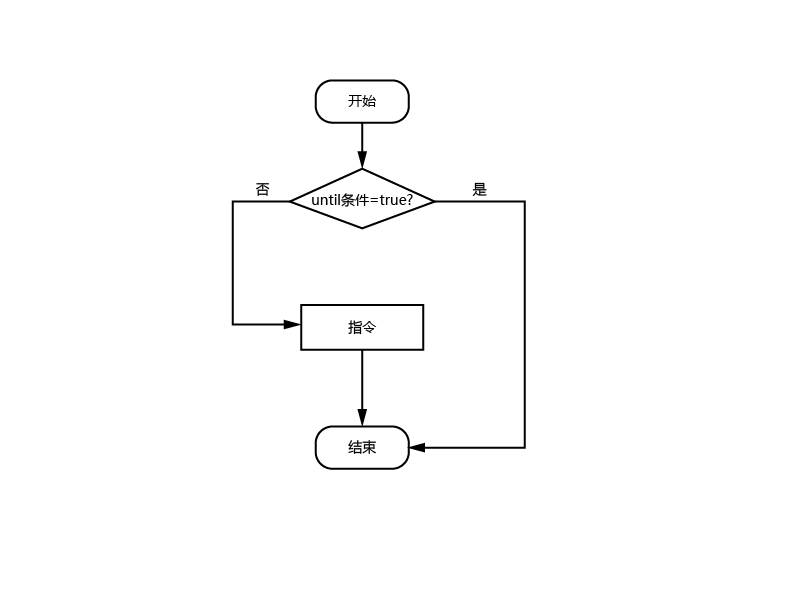
UNTIL - Until
Format: UNTIL [Instruction Name] I001 [Variable 1] = [Comparison Method] I002 [Variable 2].
Function: When condition is not satisfied, execute instructions between UNTIL and ENDUNTIL then exit and execute next instruction. When condition is satisfied, directly jump to instructions below ENDUNTIL.
Parameters:
| Parameter | Description |
|---|---|
| Parameter Type | Numeric variable, digital input/output, analog input variable If parameter type is variable (INT, DOUBLE, BOOL, GINT, GDOUBLE, GBOOL), this is the variable name If parameter type is input value (DIN, DOUT, AIN), this is the port number |
| Comparison Method | == Equal < Less Than > Greater Than <= Less Than or Equal >= Greater Than or Equal != Not Equal |
| Variable Value Source | Supports Custom and Variable types. If Custom is selected, directly fill in the value to assign to the variable |
Notes:
- When inserting UNTIL instruction, ENDUNTIL instruction is also inserted. When deleting UNTIL instruction, also delete corresponding ENDUNTIL instruction, otherwise the program cannot run.
Example:
- NOP
- MOVL P0001 V=10mm/s PL=0 ACC=1 DEC=1 0
- UNTIL(I001<5)
- MOVL P0002 V=10mm/s PL=0 ACC=1 DEC=1 0
- MOVL P0003 V=10mm/s PL=0 ACC=1 DEC=1 0
- ENDUNTIL
- TIMER T=1
- END
Example description: When UNTIL condition is satisfied, directly jump to TIMER (delay) instruction after ENDUNTIL. When UNTIL condition is not satisfied, execute linear instructions between UNTIL and ENDUNTIL.
CRAFTLINE - Craft Line Skip
Format: CRAFTLINE [Instruction Name] 1 [Corresponding Line Number].
Function: Only used for special craft processes. Insert this instruction in the program to set the corresponding line number. When running the program in the special craft interface, it will first jump to the corresponding line number.
Parameters:
| Parameter | Description |
|---|---|
| New Parameter | The number entered here represents the line number to jump to when running the special craft program |
Example:
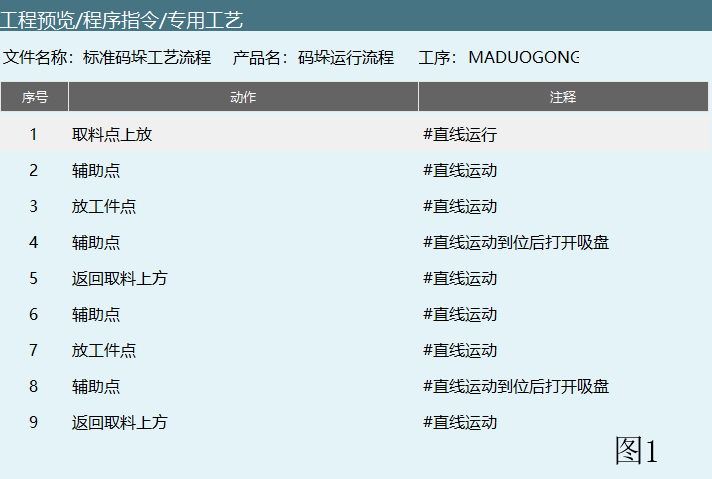
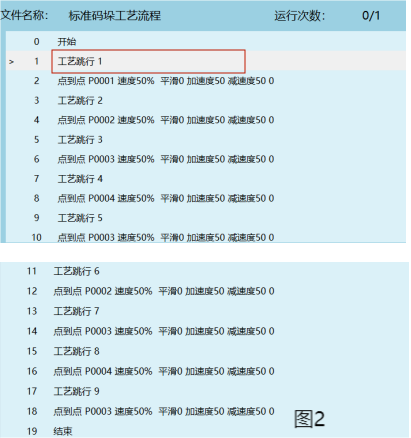
Example description: Craft line skip instruction 1 in Figure 2 corresponds to craft sequence number 1 in Figure 1. If the red-checked part in Figure 2 is changed to craft line skip 5, when running the program in the special craft interface, it will first jump to sequence number 5 in Figure 1, then start running the program from the auxiliary point.
CMDNOTE - Comment Instruction
Format: ##Comment Content$$.
Function: Add comments at appropriate positions in the program for debugging convenience.
Parameters: N/A.
Notes:
- Comment instruction will jump to the next instruction during execution, without error messages.
- Comment content supports Chinese and English, upper and lower case, numbers, and symbols.
Example:
- NOP
- ##Run linear trajectory$$
- MOVL P0002 V=10mm/s PL=0 ACC=1 DEC=1 0
- MOVL P0002 V=10mm/s PL=0 ACC=1 DEC=1 0
- ##Delay 1 second$$
- TIMER T=1
- END
Example description: Comment instruction at line 2 is for instructions at lines 3 and 4. Comment instruction at line 5 is for the instruction at line 6.
POS_REACHABLE - Position Reachable Check
Format: POS_REACHABLE [Instruction Name] MOVL/MOVJ [Motion Type] B001 [Status Stored Variable].
Function: Check if target point can be reached. If reachable, status stored variable is set to 1; if not reachable, set to 0.
Parameters:
| Parameter | Description |
|---|---|
| Position Variable Name | Global position point (GP), local position point (P) |
| Motion Type | Linear interpolation (MOVL), Joint interpolation (MOVJ) Example: Some points can be reached via joint interpolation but not via linear interpolation. Use position reachable check instruction to determine if the target point can be reached via linear or joint interpolation, preventing the robot from reaching singular points during operation |
| Status Stored Variable | Store the reachability result in variable. "1" means reachable, "0" means not reachable |
Example:
- NOP
- POS_REACHABLE MOVL GP0001 GB0001
- POS_REACHABLE MOVL GP0002 GB0002
- MOVJ GP0001 V=10mm/s PL=0 ACC=1 DEC=1 0
- MOVJ GP0002 V=10mm/s PL=0 ACC=1 DEC=1 0
- END
Example description: First insert position reachable check instruction to determine if target points GP0001 and GP0002 can be reached via linear interpolation. If reachable, variables GB001 and GB0002 are set to 1.
CLKSTART - Clock Start
Format: CLKSTART [Instruction Name] ID=1 [Timer ID] D001 [Timer Variable].
Function: Run this instruction to start timing, and record the time to a local or global DOUBLE variable.
Parameters:
| Parameter | Description |
|---|---|
| ID | Timer ID, up to 32 timers can be used simultaneously |
| Variable | Variable type: local DOUBLE variable or global GDOUBLE variable. Recorded time is stored in the selected variable Example: If selected variable is GD001, during program execution GD001 will store the timed value |
Example:
- NOP
- MOVL GP0001 V=10mm/s PL=0 ACC=1 DEC=1 0
- CLKSTART ID=1 GD001
- MOVL GP0002 V=10mm/s PL=0 ACC=1 DEC=1 0
- END
Example description: When program runs to line 3, timer 1 starts timing. After line 4 instruction completes, timer 1 stops timing. Recorded time is stored in variable GD001.
CLKSTOP - Clock Stop
Format: CLKSTOP [Instruction Name] ID=1 [Timer ID to Stop].
Function: Stop the timer with the corresponding ID. After stopping, the value stored in the variable is not reset to zero.
Parameters:
| Parameter | Description |
|---|---|
| ID | Timer ID to stop. Timer start and stop IDs must correspond. |
Example:
- NOP
- CLKSTART ID=1 GD001
- MOVL GP0001 V=10mm/s PL=0 ACC=1 DEC=1 0
- MOVL GP0002 V=10mm/s PL=0 ACC=1 DEC=1 0
- CLKSTOP ID=1
- MOVL GP0003 V=10mm/s PL=0 ACC=1 DEC=1 0
- END
Example description: When program runs to line 2, timer 1 starts timing. At line 5, timer 1 stops timing. After stopping, the time stored in the variable is not reset. If timer 1 restarts in the same program, it continues from the last stopped value (e.g., if last stop time was 12.55ms, timing restarts from 12.55ms).
CLKRESET - Clock Reset
Format: CLKRESET [Instruction Name] ID=1 [Timer ID to Reset].
Function: Reset the timer with the corresponding ID to zero. Without this instruction, the next CLKSTART instruction will accumulate timing.
Parameters:
| Parameter | Description |
|---|---|
| ID | Timer ID to reset. Timer start and reset IDs must correspond. |
Example:
- NOP
- CLKSTART ID=1 GD001
- MOVL GP0001 V=10mm/s PL=0 ACC=1 DEC=1 0
- MOVL GP0002 V=10mm/s PL=0 ACC=1 DEC=1 0
- CLKSTOP ID=1
- MOVL GP0003 V=10mm/s PL=0 ACC=1 DEC=1 0
- CLKRESET ID=1
- END
Example description: When program runs to line 2, timer 1 starts timing, value stored in variable GD001. At line 5, timer 1 stops timing, but variable GD001 value is not reset. At line 7, timer 1 is reset and variable GD001 value is cleared.
READLINEAR - Read Linear Speed
Format: READLINEAR [Instruction Name] GI001 [Variable to Store Value].
Function: Read robot's linear speed in real-time during operation, and store the read speed into a variable.
Parameters:
| Parameter | Description |
|---|---|
| Variable | Variable type (INT, GINT, DOUBLE, GDOUBLE) |
Notes:
- When inserting read linear speed instruction, a read linear speed stop instruction is also inserted. When deleting the read linear speed instruction, also delete the corresponding stop instruction, otherwise the program will report an error.
Example:
- NOP
- MOVL GP0001 V=10mm/s PL=0 ACC=1 DEC=1 0
- READLINEAR GI001
- MOVL GP0002 V=10mm/s PL=0 ACC=1 DEC=1 0
- ENDREADLINEAR
- MOVL GP0003 V=10mm/s PL=0 ACC=1 DEC=1 0
- END
Example description: When program runs to line 2, it starts reading linear speed and stores the value into variable GI001 (GI001 value changes in real-time). At line 5, stop reading linear speed (GI001 value returns to initial state).
CALL_LUASTRING - Call Lua Statement
Format: CALL_LUASTRING [Instruction Name] [$statement$] [Lua Statement Input].
Function: Implement corresponding functions or operations by calling Lua statements. For example: variable modification, global/local point acquisition.
Parameters:
| Parameter | Description |
|---|---|
| Statement | Manual Input: Enter correct Lua statement to directly single-step or run Example: Modify GI001=12 CALL_LUASTRING #nex.GI[1]=12# Variable: Write Lua statement to string (string) variable, then call the corresponding string variable to implement its function Example: Modify GI002=22 SET GS001=#nex.GI[2]=22# CALL_LUASTRING GS001 |
Example:
- NOP
- SET GS005=#nex.GI[5]=12#
- CALL_LUASTRING GS005
- CALL_LUASTRING #nex.dout[1,1]#
- END
Example description: By calling Lua statement instruction, enter correct Lua statement format, modify GI005=12, IO board 1 digital output port 1-1 is set to high level.
PARAM_DECLARATION - Parameter Declaration
Format: PARAM_DECLARATION [Instruction Name] IN(I001=1,[Variable 1]) [Input Parameter Info] OUT(1,[Output Parameter]) [Output Parameter Info].
Function: Declare input or output parameters. Input parameters will be received and used by the subroutine. Output parameters will be returned to the main program.
Parameters:
| Parameter | Description |
|---|---|
| Input Parameter Count | Define the number of input parameters. The number defined here determines the number of input parameters in the CALL instruction parameter interface |
| Input Parameter Selection | Clickable when input parameter count is 0 1. Input parameter count - This parameter is modifiable - Number of rows displayed below equals the count 2. Variable column - Select the variable to store input parameters - Default is I001 3. Default value column - Select parameter default value, default is Not Used - [More] types: Manual Input, Not Used, Variable 4. Remark column - Custom comment content - Comment content cannot exceed 20 characters |
| Output Parameter Count | Define the number of output parameters. The number defined here determines the number of output parameters in the CALL instruction parameter interface |
| Output Parameter Selection | Clickable when output parameter count is 0 1. Output parameter count - This parameter is modifiable - Number of rows displayed below equals the count 2. Output parameter column Displays parameter sequence numbers 3. Default value column - Select parameter default value, default is Not Used - [More] types: Manual Input, Not Used, Variable 4. Remark column - Custom comment content - Comment content cannot exceed 20 characters |
Notes:
- If PARAM_DECLARATION's input parameter variable value is set to Not Used, the CALL instruction's input parameters are obtained via manual input. If PARAM_DECLARATION's input parameter variable value is set to Manual Input, the CALL instruction's input parameters should select Not Used.
- PARAM_DECLARATION's output parameter values will be returned to the variables bound in the main program's CALL instruction output parameters. Note that variables must be assignable to the corresponding main program variables.
Example: Main program
- NOP
- SET I001=12
- SET I002=22
- CALL[$Q11$]IN(I001,I002)OUT(D006,D007)
- TIMER T=1
- END
Example: Subroutine Q11
- NOP
- PARAM_DECLARATION IN(D001=[-],D002=[-])OUT(10.0,11.0)
- TIMER T=0.5
- END
Execution effect: Subroutine Q11's parameter declaration input parameter variable value is set to Not Used ([-] means Not Used). Input parameters are obtained from CALL instruction's manual input. Main program runs call subroutine instruction, input parameters I001 and I002 values are received and used by subroutine. When running to subroutine Q11, I001=12, I002=22. Output parameters return to main program. After subroutine execution ends, D006=10, D007=11.
WAIT_POS - Wait Position Reached
Format: WAIT_POS [Instruction Name] SPEED/POS [Speed/Position] ACCURACY [Accuracy] MINTIME [Minimum Wait Time] MAXTIME [Maximum Wait Time].
Function: MOV instruction completion does not mean servo operation is complete, only that the point has been sent. This instruction waits for the servo motor to precisely reach the point before executing the next instruction.
Parameters:
| Parameter | Description |
|---|---|
| Speed/Position | Parameters for wait position reached |
| Accuracy | Reference for determining if point is reached Example: Value is 0.1, once point is sent and [set time] has elapsed, start checking if point is reached |
| Minimum Wait Time | Regardless of whether the specified point is reached, this time must be waited |
| Maximum Wait Time | If wait time exceeds this value and robot has not reached the point, an error is reported |
Notes:
- This instruction must be executed after a motion instruction to take effect.
- This instruction only supports foreground programs. Background programs have no motion instructions so this is not needed.
- This instruction does not support early execution
- If robot reaches the point between minimum and maximum wait time, it exits the wait and executes the next instruction
Example:
- NOP
- MOVL P0001 V=10mm/s PL=0 ACC=1 DEC=1 0
- MOVL P0002 V=10mm/s PL=0 ACC=1 DEC=1 0
- MOVL P0003 V=10mm/s PL=0 ACC=1 DEC=1 0
- WAIT_POS
- TIMER T=2
- END
Example description: When line 4 instruction completes, it means point execution is complete. Line 5 instruction completion means servo execution is complete. After servo reaches the point, delay instruction begins.
DETECTCOLLISION_SET - Collision Detection Set
Format: DETECTCOLLISION_SET [Instruction Name] 0/1 [Temporary Parameter Off/On] 0/1 [0 "Collision Detection Enable Off", 1 "Collision Detection Enable On"] J1=50, J2=50, J3=50, J4=50, J5=50, J6=50 [Collision Detection Threshold].
Function: Call temporary parameters for convenient adjustment of collision detection threshold.
Parameters:
| Parameter | Description |
|---|---|
| Use Temporary Parameter | Turn on this switch to modify collision detection parameter threshold |
| Collision Detection Enable | After enabling, robot detects collisions based on sensitivity. Usually need to find values that don't trigger collision during robot operation, then can be used normally |
Example:
- NOP
- MOVL P0001 V=10mm/s PL=0 ACC=1 DEC=1 0
- MOVL P0002 V=10mm/s PL=0 ACC=1 DEC=1 0
- DETECTCOLLISION_SET 1 1 55 55 55 55 55 55
- MOVL P0003 V=10mm/s PL=0 ACC=1 DEC=1 0
- END
Example description: When executing lines 2 and 3, collision detection parameter threshold is from Human-Robot Collaboration - Mechanical Function interface's collision detection threshold (instruction) parameter. When executing line 4, collision detection parameter threshold is from the DETECTCOLLISION_SET instruction's set parameters.
Notes: DETECTCOLLISION_SET instruction is only a temporary parameter, effective only for motion instructions below it. When DETECTCOLLISION_SET instruction is not inserted, it calls the Human-Robot Collaboration - Mechanical Function interface's collision detection threshold (instruction) parameter.
DETECTCOLLISION_RESET - Collision Detection Reset
Format: DETECTCOLLISION_RESET [Instruction Name].
Function: Reset temporarily used collision detection threshold. After executing this instruction, it will call the Human-Robot Collaboration - Mechanical Function interface's collision detection threshold (instruction) parameter.
Parameters: N/A.
Example:
- NOP
- MOVL P0001 V=10mm/s PL=0 ACC=1 DEC=1 0
- DETECTCOLLISION_SET 1 1 55 55 55 55 55 55
- MOVL P0002 V=10mm/s PL=0 ACC=1 DEC=1 0
- DETECTCOLLISION_RESET
- MOVL P0003 V=10mm/s PL=0 ACC=1 DEC=1 0
- END
Example description: When executing line 1, it calls the Human-Robot Collaboration - Mechanical Function interface's collision detection threshold (instruction) parameter. When executing line 4, it uses the temporary threshold set by line 3. After executing line 5, detection parameter is reset. When executing line 6, it calls the Human-Robot Collaboration - Mechanical Function interface's collision detection threshold (instruction) parameter.
SWITCH
Format: SWITCH [Instruction Name].
Function: When SWITCH parameter value matches a CASE value, jump to the corresponding CASE statement block and execute the corresponding instruction. After executing that block, exit SWITCH. If SWITCH parameter value doesn't match any CASE, execute DEFAULT statement.
Parameters:
| Parameter | Description |
|---|---|
| Variable | Variable type: INT, GINT |
Example:
- NOP
- SWITCH_I001
- CASE_1
- TIMER T=1
- ENDSWITCH_
- END
Example description: When SWITCH parameter value matches the first CASE condition, execute line 4 instruction. If not matched, execute line 5 instruction.
CASE
Format: CASE [Instruction Name].
Function: When executing SWITCH, if match is successful, execute the corresponding CASE.
Parameters:
| Parameter | Description |
|---|---|
| CASE | Parameter must be an integer |
Example:
- NOP
- SWITCH_I002
- CASE_1
- TIMER T=1
- CASE_2
- TIMER T=2
- ENDSWITCH_
- END
Example description: When SWITCH parameter value matches the first CASE condition, execute line 4 instruction. If not matched, check the second CASE. If second CASE matches, execute line 6 instruction. If not matched, execute line 7 end switch instruction.
DEFAULT
Format: DEFAULT [Instruction Name].
Function: When SWITCH parameter variable doesn't match any stored CASE values, execute DEFAULT statement.
Parameters: N/A.
Example:
- NOP
- SWITCH_I002
- CASE_1
- TIMER T=1
- CASE_2
- TIMER T=2
- DEFAULT_
- ENDSWITCH_
- END
Example description: When SWITCH parameter value doesn't match the first and second CASE conditions, execute line 8 default instruction.
OVERLOADPROTECT_SET - Motor Overload Protection Set
Format: OVERLOADPROTECT_SET [Instruction Name] Overload Enable [1 for On, 0 for Off] Temporary Parameter [1 for On, 0 for Off].
Function: Temporarily set values in motor overload protection.
Parameters:
| Parameter | Description |
|---|---|
| Overload Enable | Only turning on the overload enable switch will enable the motor overload protection switch in Settings - Slave Configuration - Servo Settings interface. Only when both overload protection switch and temporary parameter switch are turned on will temporary parameters be called |
| Temporary Parameter | Turn on temporary parameter switch to set temporary motor overload protection detection values |
| Axis 1 | Range [0, 9999) Users can set overload protection value for each axis |
| Axis 2 | Same as above |
| Axis 3 | Same as above |
| Axis 4 | Same as above |
| Axis 5 | Same as above |
| Axis 6 | Same as above |
Example:
- NOP
- OVERLOADPROTECT_SET 1 0 8888 8888 8888 8888 8888 8888 0
- OVERLOADPROTECT_SET 0 0 8888 8888 8888 8888 8888 8888 0
- OVERLOADPROTECT_SET 1 1 1200 2500 3500 1000 1000 1000 0
- TIMER T = 1
- END
Example description: Executing line 2 instruction enables the motor overload protection switch in Settings - Slave Configuration - Servo Settings interface. At this time, it calls data from the Servo Settings interface. Executing line 3 instruction disables the overload protection switch in Servo Settings interface. Executing line 3 instruction calls the temporary data set in the instruction parameter interface.
Q&A for Retrieval
Q: What is the CALL instruction?
A: CALL is a call subroutine instruction used to call another program. After the called program finishes, it returns to the next line of the CALL instruction in the main program and continues execution.
Q: What is the RETURN instruction?
A: RETURN is an exit instruction used to exit the currently running job file, such as subroutine or background program.
Q: What is the CALL_LUAFILE instruction?
A: CALL_LUAFILE is a call Lua file instruction used to call uploaded Lua files. After parameters are defined, directly upload the Lua file and insert the call instruction.
Q: What is the IF instruction?
A: IF is a conditional judgment instruction. When the condition is satisfied, instructions between IF and ENDIF are executed. It supports multi-condition judgment, up to 5 conditions.
Q: What is the ELSEIF instruction?
A: ELSEIF is an else-if instruction. When IF condition is not satisfied, judge ELSEIF's condition. If satisfied, execute instructions between ELSEIF and ENDIF.
Q: What is the WAIT instruction?
A: WAIT is a wait instruction. When condition is satisfied, continue to next instruction. When not satisfied, stay at this instruction waiting. Supports setting wait time and filter time.
Q: What is the WHILE instruction?
A: WHILE is a loop instruction. When condition is satisfied, repeatedly execute instructions between WHILE and ENDWHILE.
Q: What is the LABEL instruction?
A: LABEL is a label instruction used to specify the label for the jump target line. Same label name cannot be inserted twice in the same program.
Q: What is the JUMP instruction?
A: JUMP is a jump instruction used to jump to the instruction line of the specified label. Must be used with LABEL instruction.
Q: What is the UNTIL instruction?
A: UNTIL is an until instruction. It loops instructions between UNTIL and ENDUNTIL until the condition is satisfied.
Q: What is the craft line skip instruction?
A: Craft line skip instruction is only used for special craft processes. Insert this instruction in the program to set the corresponding line number. When running the program in the special craft interface, it will first jump to the corresponding line number.
Q: What is the instruction comment?
A: Instruction comment is used to add comment content in the program for convenient program reading and maintenance.
Q: What is the position reachable check instruction?
A: Position reachable check instruction is used to determine if the target point can be reached. If reachable, status stored variable is set to 1; if not reachable, set to 0.
Q: What is the clock start instruction?
A: Clock start instruction is used to start timing and record the time to a local or global DOUBLE variable. Up to 32 timers can be used simultaneously.
Q: What is the clock stop instruction?
A: Clock stop instruction is used to stop the timer with the corresponding ID. After stopping, the value stored in the variable is not reset to zero.
Q: What is the clock reset instruction?
A: Clock reset instruction is used to reset the timer with the corresponding ID. After reset, the value stored in the variable is cleared.
Q: What is the read linear speed instruction?
A: Read linear speed instruction is used to read the robot's linear speed in real-time and store the read speed into a variable.
Q: What is the call Lua statement instruction?
A: Call Lua statement instruction is used to implement corresponding functions or operations by calling Lua statements, such as variable modification, global/local point acquisition.
Q: What is the parameter declaration instruction?
A: Parameter declaration instruction is used to declare input or output parameters. Input parameters will be received and used by the subroutine. Output parameters will be returned to the main program.
Q: What is the wait position reached instruction?
A: Wait position reached instruction is used to wait for the servo motor to precisely reach the point before executing the next instruction. Must be executed after a motion instruction.
Q: What is the collision detection set instruction?
A: Collision detection set instruction is used to set collision detection parameters.
Q: What is the collision detection reset instruction?
A: Collision detection reset instruction is used to reset collision detection parameters.
Q: What are the Switch/Case/Default instructions?
A: Switch is a switch instruction, Case is a matching instruction, Default is a default matching instruction, used for multi-condition branch judgment.
Q: What is the motor overload protection set instruction?
A: Motor overload protection set instruction is used to temporarily set values in motor overload protection.
Q: What are the rules for AND and OR operations?
A: AND operation (&&): Result is "1" only when both bits are "1", otherwise 0. OR operation (||): If either operand is 1, the result is 1.
Q: What comparison methods does conditional judgment support?
A: Supports equal (==), less than (<), greater than (>), less than or equal (<=), greater than or equal (>=), not equal (!=) six comparison methods.
Version History
| Version | Date | Changes | Author |
|---|---|---|---|
| 1.0.0 | 2026-06-29 | Initial version | FDJAK |