How to Make the Robot Move After Factory Reset
For a new robot, the robot manufacturer ships it with configuration parameters pre-set and the controller and servo network cables already connected. You can use the robot directly upon receipt.
Note: Before use, remember to back up the robot configuration to prevent configuration loss after performing a factory reset.
How to back up configuration (path: Settings > System Settings > Export Controller Configuration)
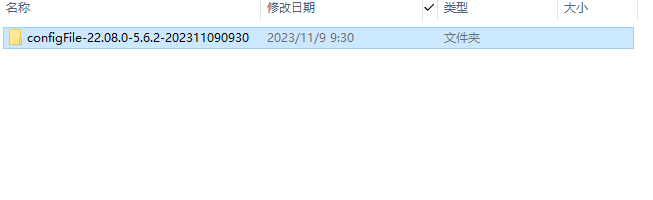
The backed-up configuration is saved as a folder in the root directory of the USB drive, as shown below:
When is a factory reset needed?
- Program downgrade: Downgrading from a higher version to a lower version (e.g., downgrading from version 22.07 to version 21.05)
- (After factory reset, robot configuration, process configuration, programs, teach pendant configuration, and other system configurations, servo parameters, servo configuration files, translation files, and alarm database will be deleted)
Robot Configuration Parameters Details
How to make the robot move after factory reset?
- Go to Settings > Robot Parameters > Slave Configuration > Robot Configuration screen and select the robot type.
- Import the robot configuration that matches the currently selected robot type and robot name.
- Import configuration: Insert the USB drive, then go to Settings > System Settings > Import Controller Configuration screen, select the configuration file, and click OK.
- After the robot restarts successfully, first check the DH parameters screen and joint parameters screen to verify that these parameters have been imported successfully.
- After the parameters are imported successfully, you can jog the robot.
Important: You must import the correct parameter configuration for the current robot. Otherwise, the robot may experience a runaway as soon as it is powered on.
Robot Configuration Parameters Details
| File Name | Chinese Name | English Name | File Content and Contents |
|---|---|---|---|
| config | MODBUS Parameter Configuration | modbusAddr.json | Contains Modbus parameters from settings |
| Controller Parameter Configuration | controller.json | Contains data for recognized servos and IO modules, such as IO module baud rate, serial communication data, and robot type selection | |
| Global Parameter Configuration | global.json | Contains IO settings related data | |
| External Program Configuration | externProgram.json | Contains Modbus program selection | |
| Data Upload Parameter Configuration | remoteDataUpload.json | Contains the data upload function settings | |
| Parameter Configuration | Robot_A.json | Contains robot parameter settings such as: joint parameters, DH parameters, zero position, Cartesian parameters | |
| User Coordinate Parameter Configuration | userFrame_A.json | Contains user coordinate parameters | |
| Tool Parameter Configuration | toolFrame_A.json | Contains tool calibration data | |
| Variant | Global External Axis Position Parameter Configuration | positionExt_R1.jso | Contains global external axis position information |
| Global Position Parameter Configuration | position_R1.jso | Contains global robot position information | |
| Global Numeric Variable Configuration | variant | Contains global variable data and global comments | |
| craft | Polishing Parameter Configuration | polish.json | Contains polishing process configuration parameters |
| TCP Communication Configuration | msg_comm.json | Contains TCP communication configuration parameters | |
| Conveyor Tracking Parameter Configuration | conveytrack.json | Contains conveyor tracking process parameters | |
| Vision Parameter Configuration | vision.json | Contains vision process communication configuration and vision position parameters | |
| Spraying Parameter Configuration | R1spray.json | Contains spraying process parameters | |
| Weaving Parameter Configuration | weavparameter.json | Contains weaving process configuration parameters | |
| Laser Cutting Configuration | lasercut.json | Contains laser cutting global parameters, cutting parameters, and analog matching | |
| Welding Process Parameter Configuration | weldcraft.json | Contains welding process welder selection, welding IO settings, and intersecting line data | |
| Palletizing Parameter Configuration | R1palletparameter.json | Contains palletizing process stack patterns and workpiece dimensions (length, width, height) and layer count |
Q&A for Retrieval
Q: After factory reset, the restart shows connection disconnected
A: Check the IP settings screen to verify that the controller IP is correct.