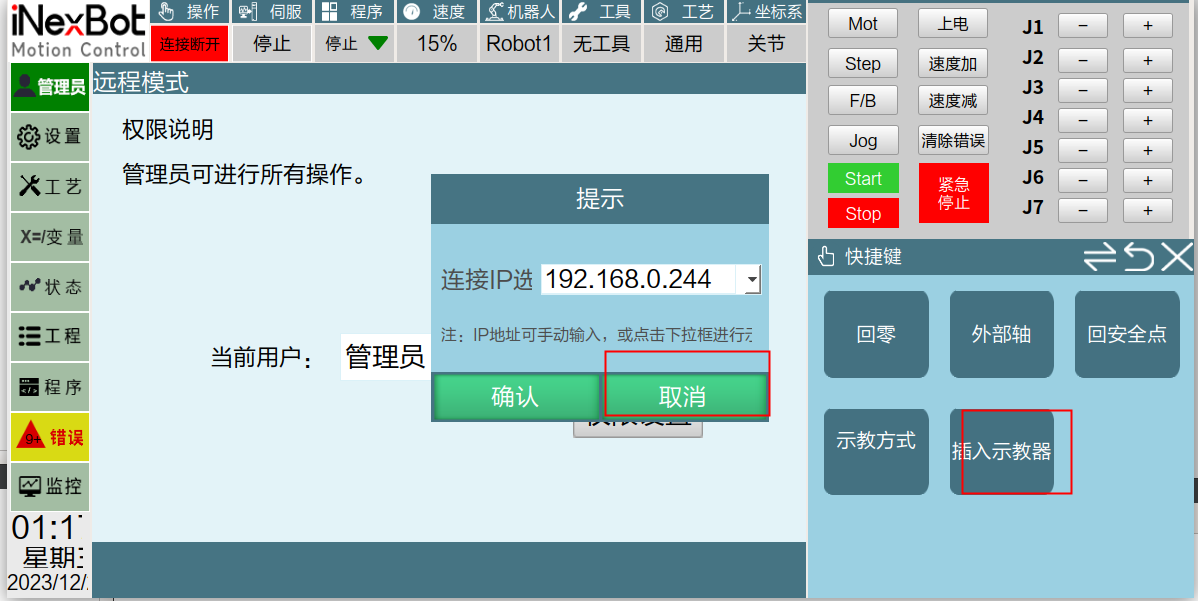
IP Scanning Function
IP Scanning Function: The controller can scan for controller IPs on the same LAN and same subnet
(This function has a delay on the first scan: T30 version delays 3–4 seconds, Linux desktop version delays 7 seconds)
An IP scanning function has been added to the original IP settings screen and the Insert Teach Pendant IP screen. It can scan for controller IPs on the same LAN (i.e., connected to the same switch/hub/router) and the same subnet.
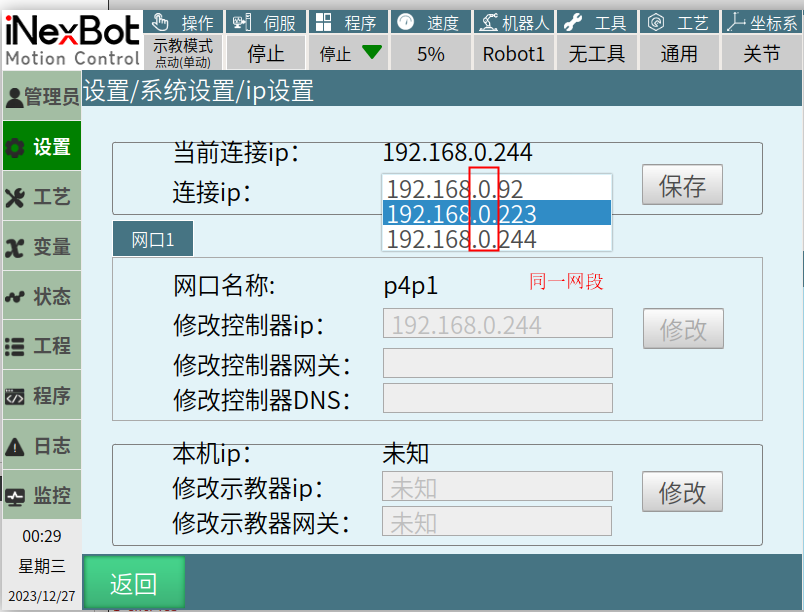
Implementation Details (two screens can implement the IP scanning function):
On the IP Settings Screen
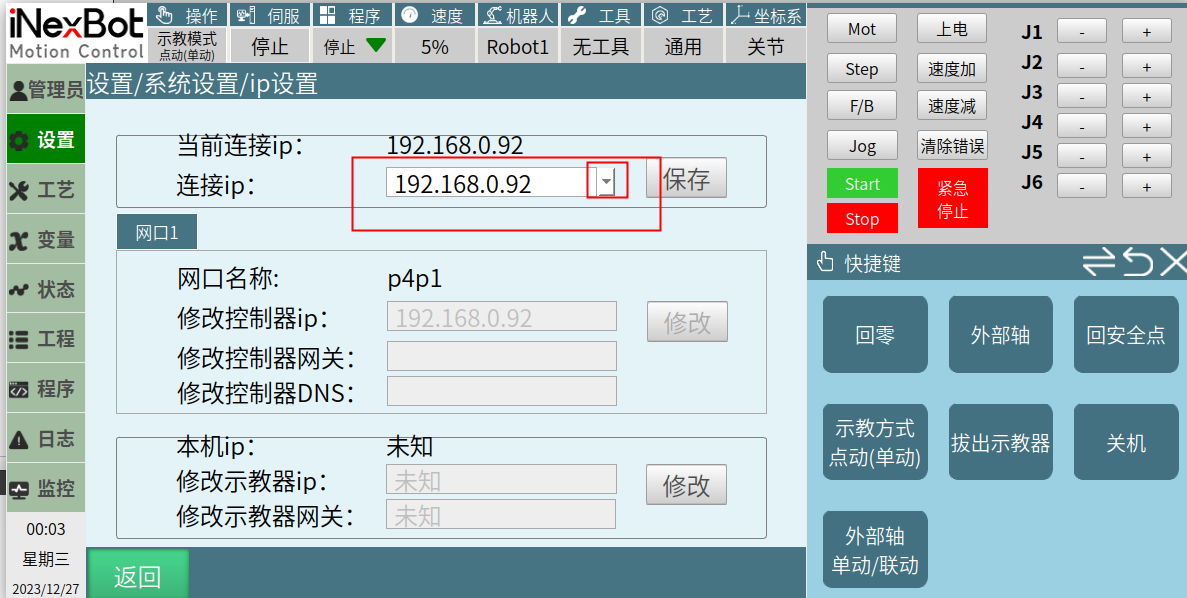
Click "Modify IP," then click the dropdown that appears and wait 3–4 seconds. The system will scan for other controllers' IPs on the same subnet and LAN. After the search is complete, results are sorted by the last octet of the IP address. Selecting a scanned IP will update it in the text box. The original input function of the text box remains unchanged — you can manually enter an IP address to connect. All other mechanisms remain unchanged.
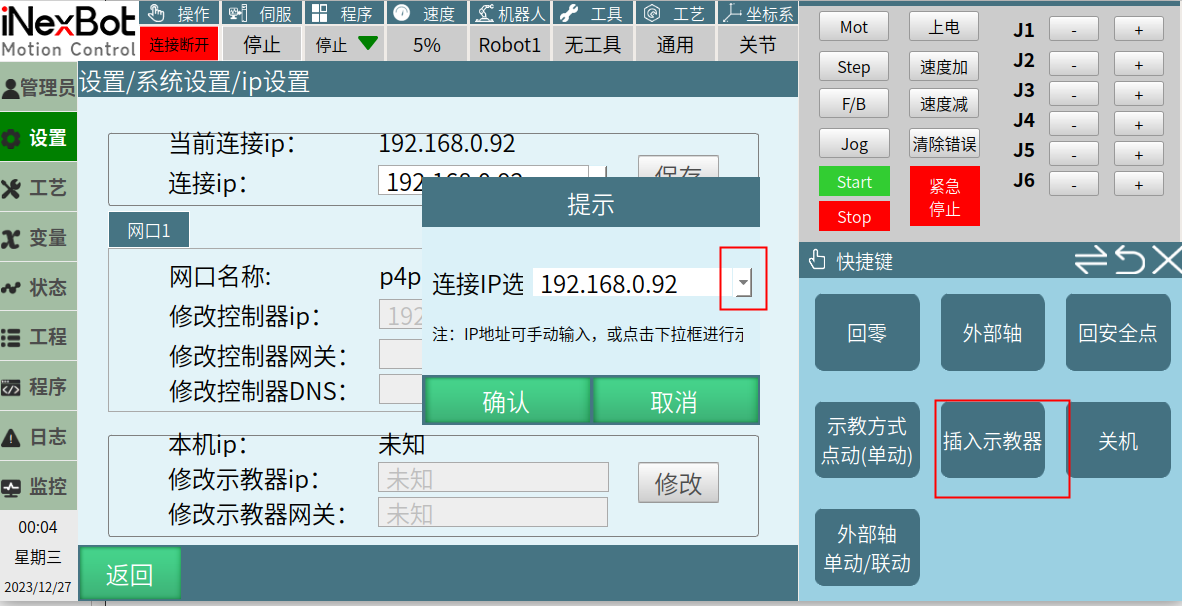
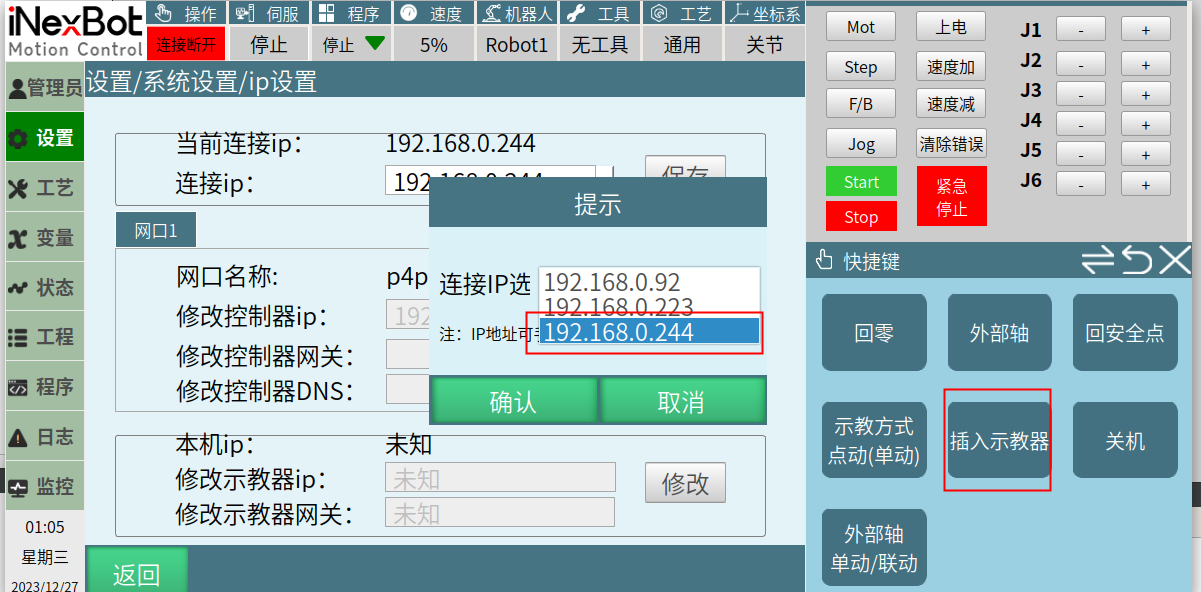
On the Insert Teach Pendant Screen — Click Teach Pendant to Pop Up a Dialog
The original input function of the text box remains unchanged — you can manually enter an IP address to connect.
You can click the dropdown to open the dropdown interface. The system will search for port 6002 addresses on the teach pendant's subnet. After the search is complete, results are sorted by the last three digits of the IP address. Selecting a scanned IP will update it in the text box. Click "Confirm" to start the connection.
3. Applicable Scenarios:
Switching one teach pendant between multiple controllers (on the same LAN), or switching multiple teach pendants and multiple controllers on the same LAN.
4. Test Method:
This scenario is mainly for switching one teach pendant between multiple controllers. It is best to have 3 or more controllers.
Note:
If you click "Cancel" on this screen, the shortcut key screen should still show "Insert Teach Pendant."