Teach Pendant Theme Color Modification Tutorial
Tutorial
The TColor.db database stores theme colors.
The method is as follows:
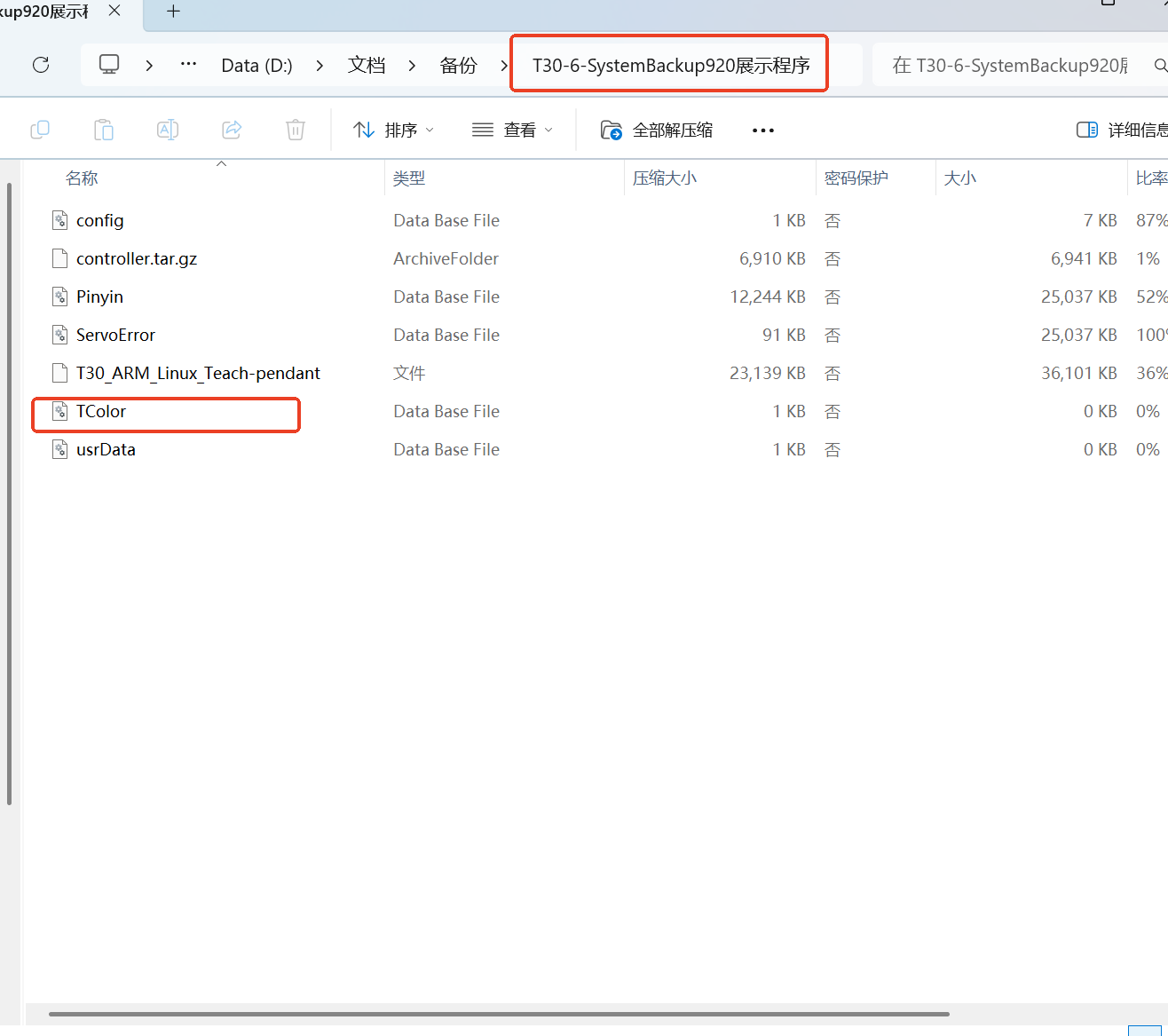
First, find the TColor.db file path:
On the Settings/System Settings/Auto Backup page, click USB Backup, wait for a period of time, and find the TColor.db file in the backup file compressed package on the USB drive.
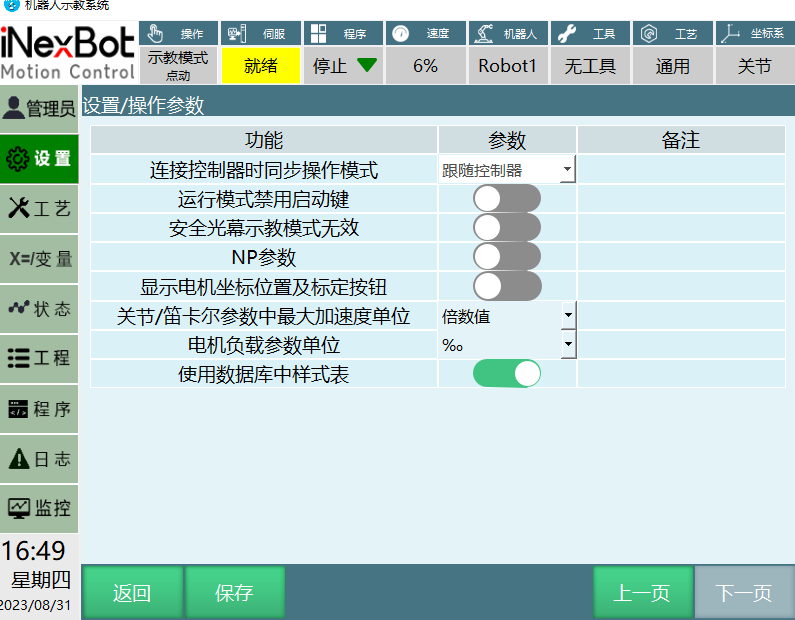
- Enable the "Use Database Stylesheet" button in Settings/Operation Parameters on the teach pendant;
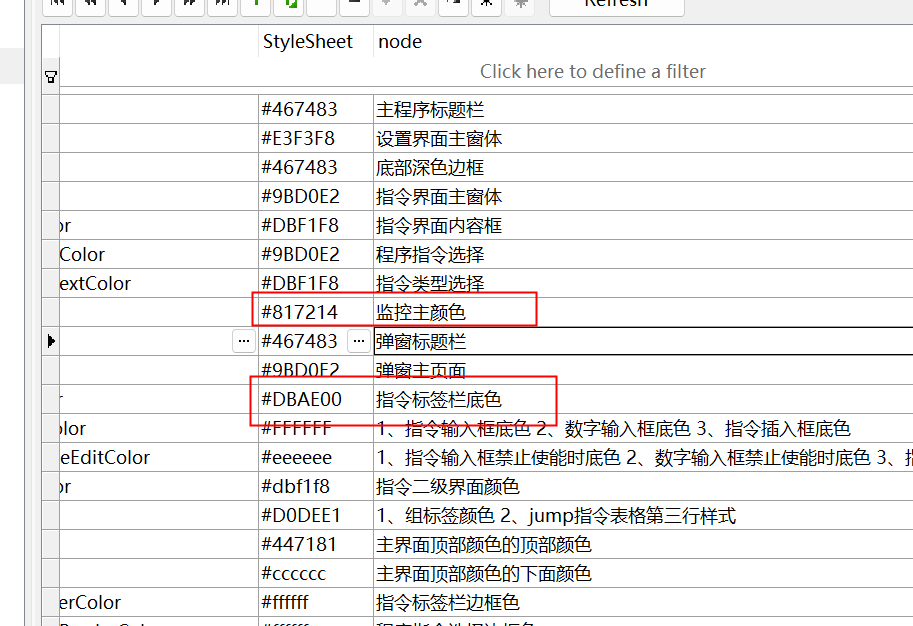
Open the TColor.db file with SQL software, modify the color code of the corresponding module in the database, save and exit;
The color code uses RGB encoding;
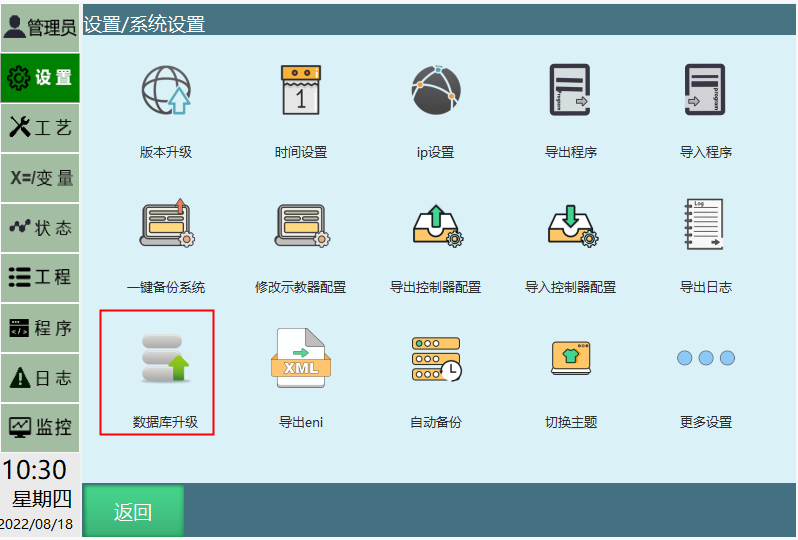
- Place the TColor.db file in the root directory of the USB drive, then go to System Settings to upgrade the database and restart the teach pendant for the changes to take effect.
Q&A for Retrieval
Q: What should I do if the TColor.db file does not exist?
A: You need to first perform a USB backup to generate a .zip file, extract it, and then find the TColor.db file.
Q: What settings need to be configured on the teach pendant before modifying the theme color?
A: You need to enable the "Use Database Stylesheet" button in Settings/Operation Parameters on the teach pendant.
Q: What encoding format does the teach pendant theme color use?
A: The color code uses RGB encoding.
Q: After modifying the TColor.db file, how do I make the changes take effect?
A: Place the TColor.db file in the root directory of the USB drive, then go to System Settings to upgrade the database and restart the teach pendant for the changes to take effect.
Q: If the theme color does not change after modification, what might be the cause?
A: Possible causes include: incorrect TColor.db file path, unsuccessful database upgrade, incomplete restart operation, etc.
Related Resources
Version History
| Version | Date | Changes | Author |
|---|---|---|---|
| 1.0.0 | 2026-04-07 | Initial version | MUZI165 |