Robot Packing Position Setting
Applicable branches: rtl-25.01, dev-wk
1. Function Overview
This function is integrated within Robot Parameters → Basic Parameters module. It is used to calibrate and store the dedicated joint poses for robot carton shipping and packing operations. It supports one-click return-to-zero pose reproduction and manual parameter modification. The page axis list automatically adapts to the current robot model (4/5/6/7-axis robots). For 6-axis models, J1–J6 joint parameters are displayed by default. After calibration, the robot can quickly move to the packing station to execute the packing and shipping process.
Core capabilities:
Dedicated "Shipping Packing Pose" configuration entry, parallel with zero position, tool calibration, and other parameter modules;
Real-time calibration: Read the robot's current joint values for each axis and save them as the standard packing station pose;
Pose reproduction: One-click control to move the robot to the calibrated packing pose;
Parameter editing: Support manual modification and saving of joint values for each axis;
Model adaptation: The page axis table automatically matches the robot's axis count, hiding extra axes.
2. Pre-Use Preparation
Equipment Safety: Power on the robot control cabinet, ensure no emergency stop is triggered on the robot body, safety doors are closed, operating at low speed in manual mode, and no personnel or obstructions interfere with the packing operation area;
Model Confirmation: Confirm the current robot axis count (4/5/6/7 axes); the page table will automatically match the corresponding J-axes, no manual adjustment needed;
Point Pre-Adjustment: Use the teach pendant to move the robot, position the end-effector at the standard carton packing and shipping operation position, and adjust joint poses to the optimal working posture;
Permission Verification: The logged-in system account must have robot parameter configuration and pose calibration operation permissions; accounts without permissions cannot access this page.
3. Operation Steps
Step 1: Enter the Shipping Packing Pose Page
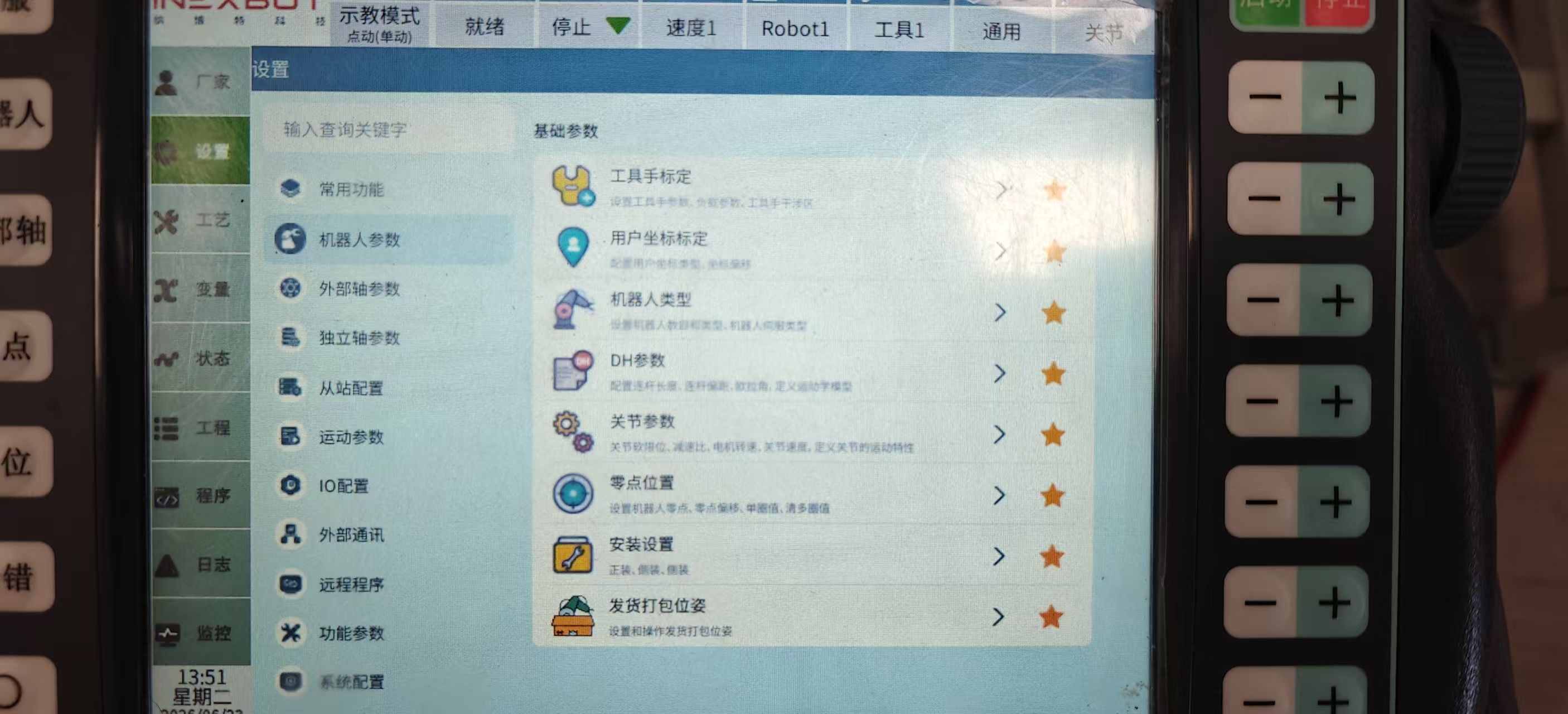
Open system menu sequentially: Settings → Robot Parameters → Basic Parameters;
In the Basic Parameters function icon bar, click the [Shipping Packing Pose] icon, and the right side will automatically switch to the pose configuration table page.
Step 2: Calibrate Current Robot Packing Station (Core Operation)
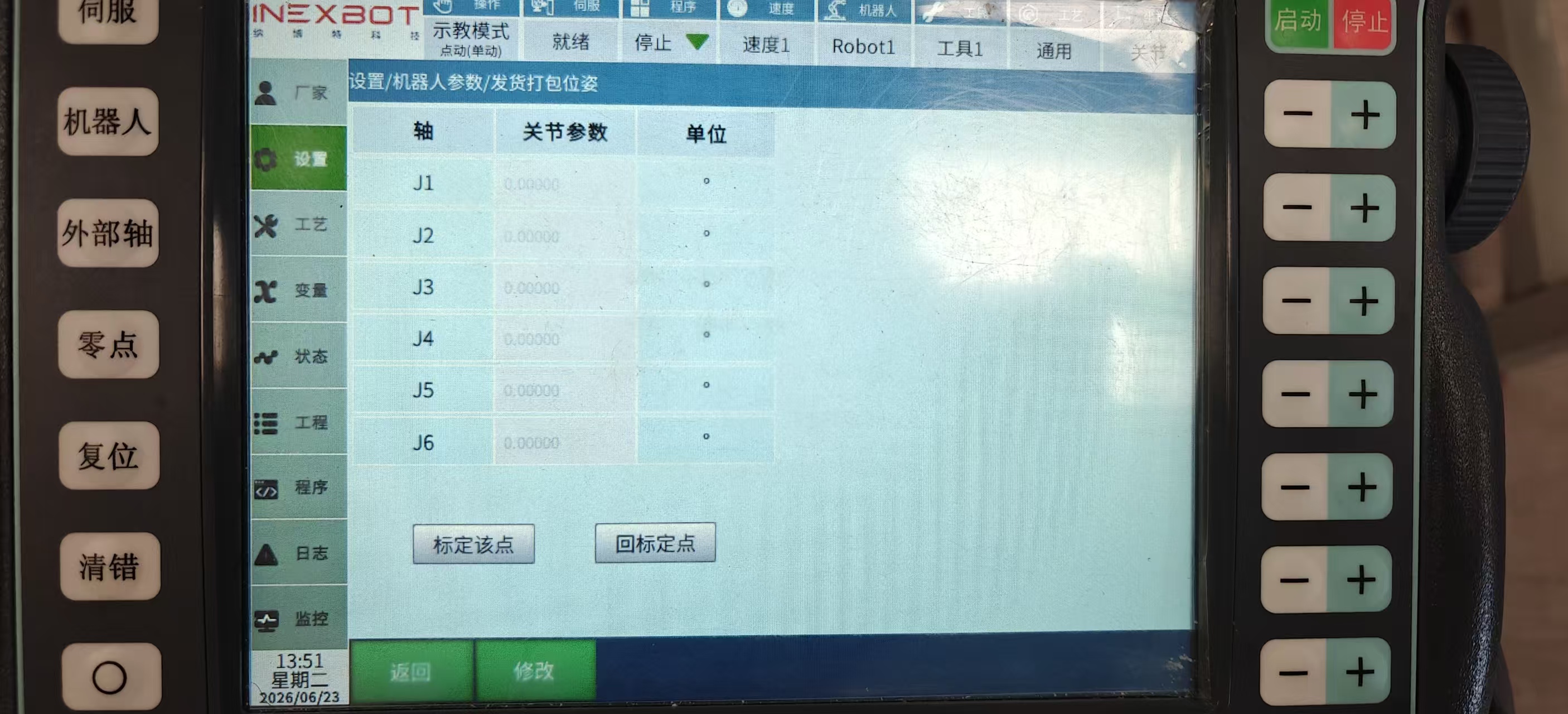
Use the teach pendant to manually move the robot to the standard carton packing and shipping operation position;
Click the [Calibrate This Point] button on the right page;
The system automatically reads the real-time joint values of J1–Jn (adapting to model axis count) and fills them into the "Joint Parameters" column of the table to complete storage;
The table automatically refreshes to display the calibrated axis parameters.
Step 3: Return to Calibrated Point (Robot Packing Point Reproduction)
After clicking Modify and Save, the calibrated point takes effect, and the robot can be moved to other positions for commissioning;
Click the [Return to Calibrated Point] button on the page;
The robot automatically moves at a safe low speed to the stored shipping packing pose, with each axis joint matching the calibration parameters in the table.
Step 4: Manually Modify Joint Parameters
Click the green [Modify] button at the bottom of the page to modify pose parameters in the table;
After modification, click the green [Save] button at the bottom of the page to save the modified pose parameters;
After saving, click [Return to Calibrated Point], and the robot will move according to the manually modified values.
Step 5: Exit the Page
Click the green [Return] button at the bottom-left of the page to return to the "Robot Basic Parameters" main function selection interface.
Supplementary Notes
Axis List Adaptation Logic: If the current robot has 7 axes, the table automatically displays J1–J7; for 4-axis models, only J1–J4 are shown, and extra axis rows are automatically hidden;
Data Persistence: Calibrated/manually modified packing pose parameters are permanently stored. Data is not lost after restarting the control cabinet or system page;
Safety Reminder: Before executing [Return to Calibrated Point], ensure the robot's motion path is unobstructed, no personnel are within the motion range, and avoid collisions.
AI Q&A for Retrieval
Q: What is the Robot Packing Position Setting function?
A: This function is used to calibrate and save dedicated joint poses for robot shipping and packing operations, enabling quick return to the packing station for packing and shipping processes.
Q: Which robot models is this function applicable to?
A: This function is applicable to 4/5/6/7-axis robots. The system automatically matches the corresponding joint parameter list based on the current model.
Q: How do I calibrate the packing station pose?
A: First move the robot to the standard packing position, then click the [Calibrate This Point] button on the page. The system will save the current joint parameters for each axis.
Q: How do I reproduce the packing point after calibration?
A: Click the [Return to Calibrated Point] button, and the robot will automatically move at a safe low speed to the saved packing pose.
Q: What should I do if I need to modify packing point parameters?
A: Click the [Modify] button at the bottom of the page to edit joint parameters. After modification, click [Save], then execute [Return to Calibrated Point] again for the changes to take effect.
Q: Will the calibrated packing pose data be lost?
A: Calibration results are persistently saved and will be retained after restarting the control cabinet or system page.
Q: What should I pay attention to before using this function?
A: Before use, confirm that the robot is in a safe state, the motion path is unobstructed, no personnel are in the operation area, and operate at low speed in manual mode.
Version History
| Version | Date | Changes | Author |
|---|---|---|---|
| 1.0.0 | 2026-06-24 | Initial version | FDJAK |