FAW FR5 Adaptation
1. Document Overview
1.1 Document Purpose
This document aims to provide a detailed introduction to the adaptation solution for the FAW FR5 robot, including robot configuration, end connector description, indicator light status, drag function settings, and point recording operations, helping users correctly configure and use the FAW FR5 robot's end IO functions.
1.2 Scope of Application
Applicable to the adaptation and function configuration of the FAW FR5 robot.
1.3 Term Definitions
- End IO: Input/output interface on the robot end-effector
- Drag Mode: A mode where the robot can be manually dragged via an external trigger signal
- Point Recording: Recording and replacing local p points in the program via an external button
- EC Library File: EtherCAT bus configuration file, used to identify the servo system
2. Robot Configuration
2.1 Required Files
| File | Size | Upload Time |
|---|---|---|
| C1102-66296-68820-rtl-24.03-6.0.9-20250408-110947.zip | 5.14 MB | 2025-04-08 13:32 |
| slaveTypeLib.json | 0.34 KB | 2025-04-08 14:27 |
| FAW EC Library File.zip | 18.77 MB | 2025-04-08 14:33 |
| FrServoAsix-6-Fr_Cobot_Axle_Asix-1.xml | 129.81 KB | 2025-04-08 14:37 |
2.2 Configuration Steps
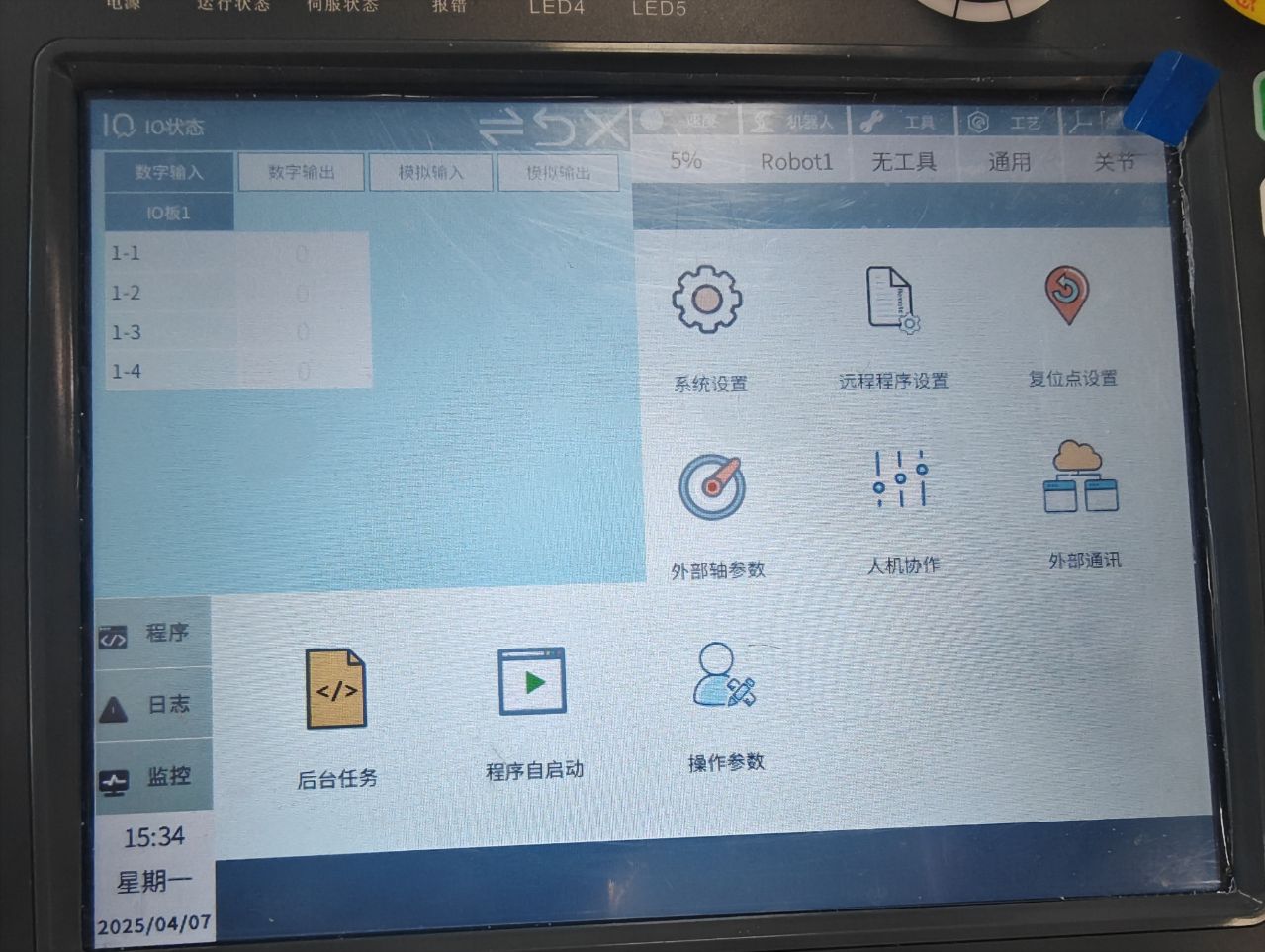
- Upload the corresponding FAW EC library file (servo cannot be identified without uploading the EC library)
- Upgrade the adapted controller program
- Upload the slaveType file
- Upload the ENI file
2.3 Common Errors
If error 0003 is reported, it means the servo library file is incorrect. You need to re-upload the servo library file.
3. End Connector
3.1 Connector Description
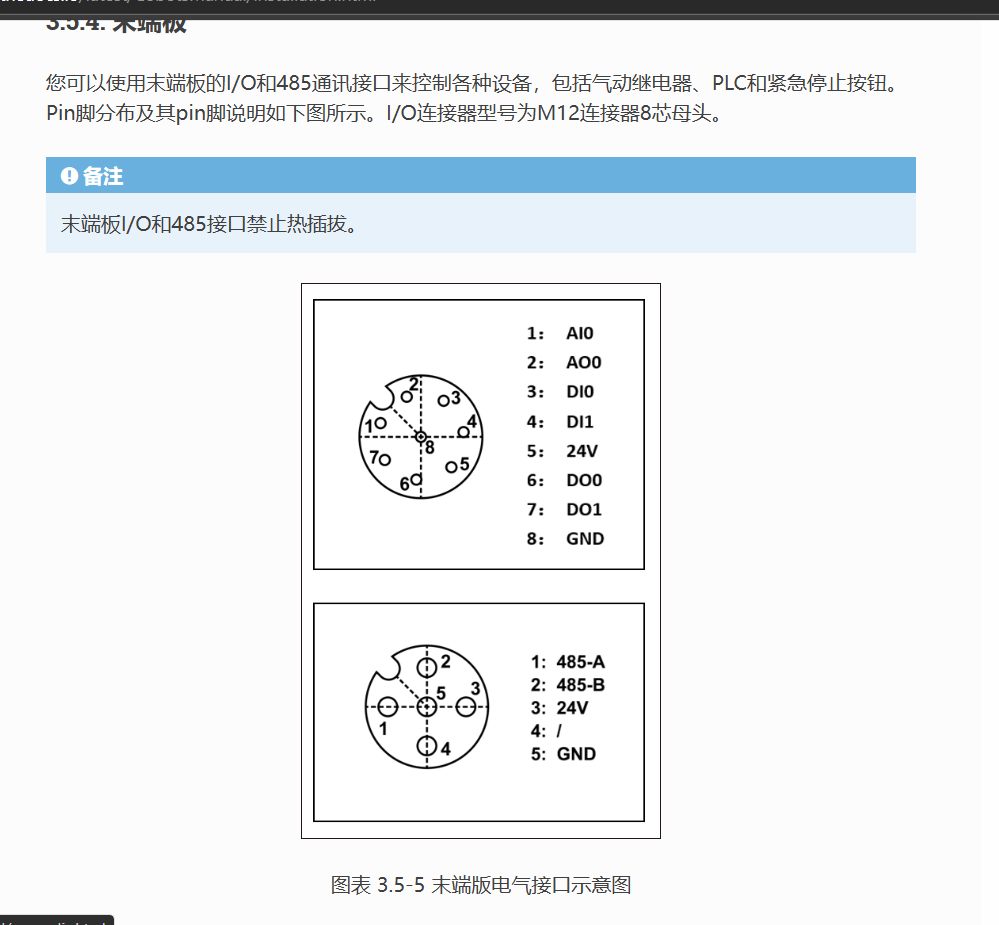
The end 8-core connector provides the following IO interfaces:
- 2 IO outputs
- 2 IO inputs
- 1 analog IO output
- 1 analog IO input
3.2 Button Function Definition
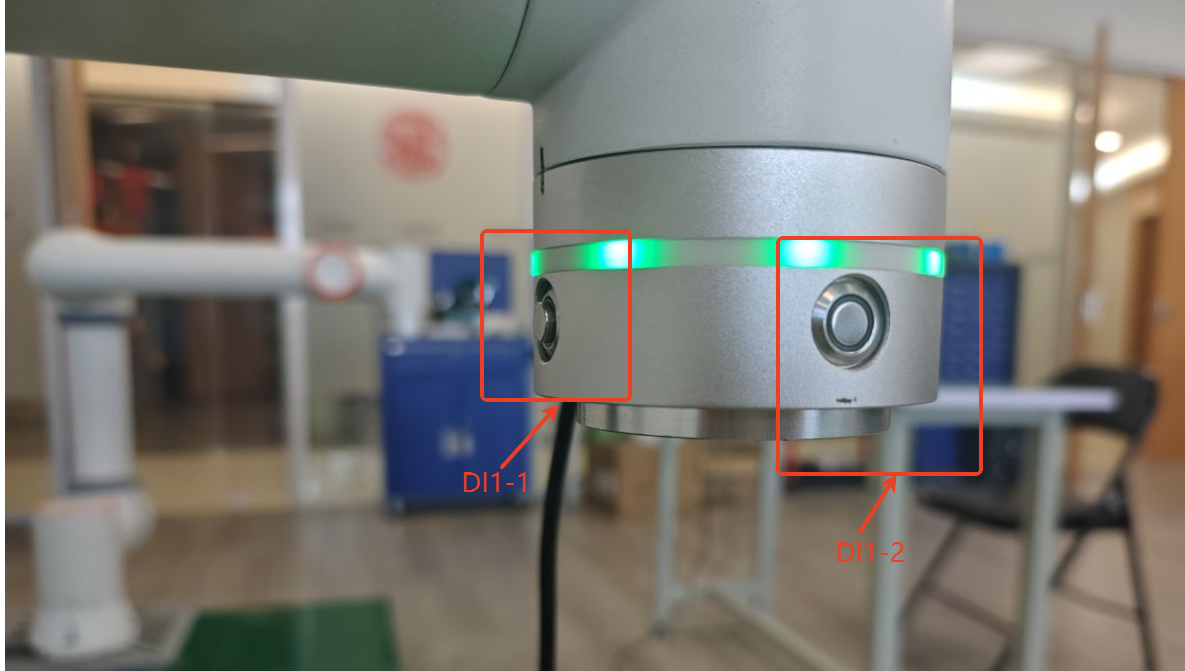
DI1-1 is the drag button, and DI1-2 is the point recording button.
4. Indicator Lights
| Function | LED Color |
|---|---|
| Run Mode | Blue solid |
| Teach Mode | Green solid |
| Drag Mode | Cyan solid |
| Button Box Record Point | Purple flash twice |
| Start Running Program or Similar Move To Point | Blue flash twice |
| Stop Running or After Moving to Point | Red flash twice |
| Error | Red solid |
| Power Off | Yellow flash twice |
5. End Drag
5.1 Drag Mode Setting
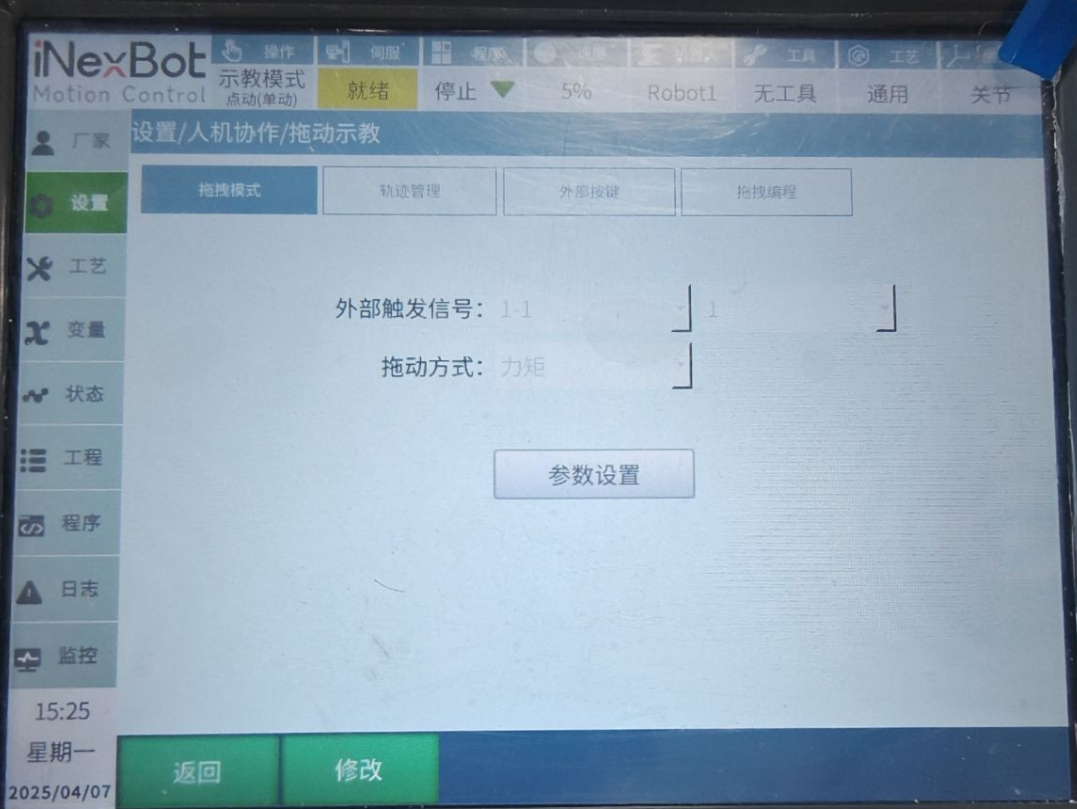
Set the external trigger signal to 1-1. When 1-1 is 1, the robot enters drag mode.
5.2 Enable Setting
Set the enable and disable trigger ports to 1-1. When 1-1 is 1, power on; when 0, power off.
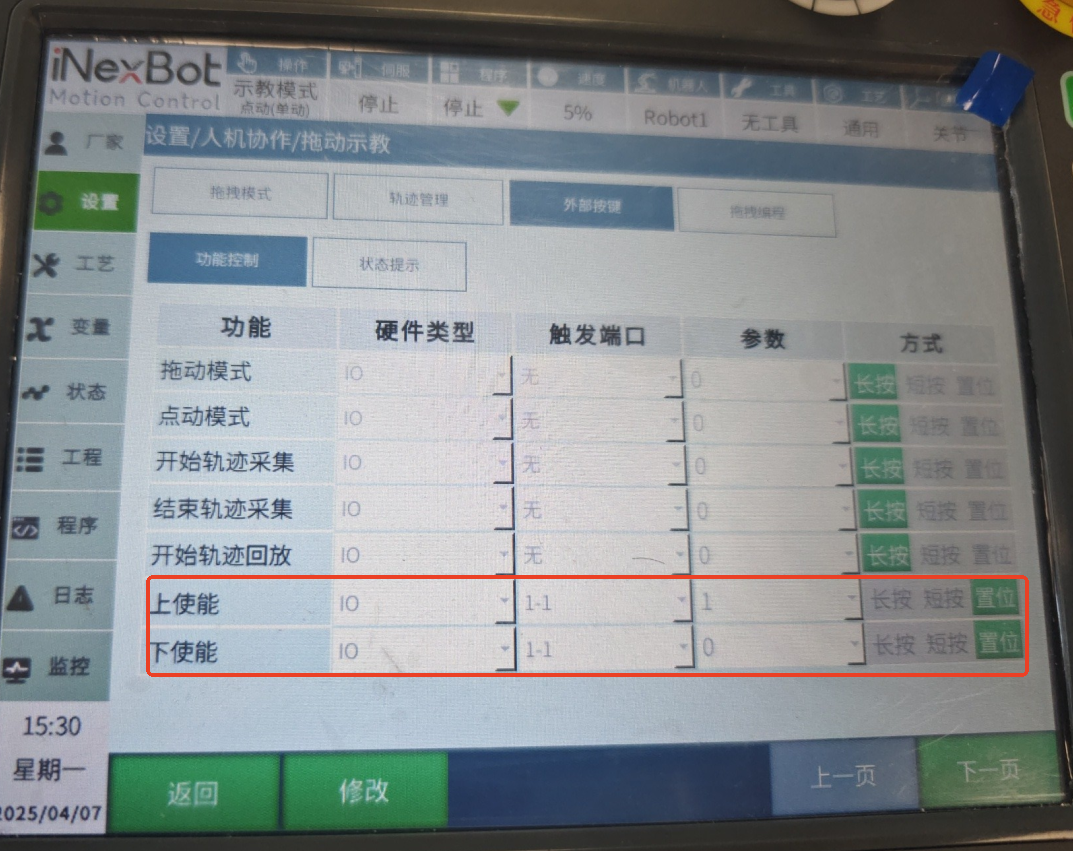
5.3 Drag Operation Flow
- Complete robot identification
- Set the required 3 trigger ports
- Press the DI1-1 button, the robot will first switch to drag mode, then power on, and finally you can perform dragging.
6. Point Recording
6.1 Point Recording Function
Point recording is used to record and replace local p points in the program by clicking an external button on the robot.
6.2 Usage Conditions
- A new job file needs to be created
- The job file must contain local p points
- If no job file is open or the job file does not contain local p points, an error will be reported
- Point recording in job files can only be performed in teach mode
6.3 Operation Flow
- In teach mode, open a job file containing local p points
- Click the point recording button (DI1-2), and it will overwrite from the first p point sequentially
- When recording exceeds the set p points, it will start overwriting from the first p point again
- After exiting the job file and re-entering:
- If it is the same job file, recording continues cumulatively
- If it is a different job file, recording starts from the beginning
7. Common Problems
7.1 FAW Collaborative Robot Still Cannot Identify Servo After Uploading EC Library File
- Possible cause: EC library file version mismatch
- Solution: Confirm the correct version of the EC library file is used, re-upload and restart the controller.
7.2 Drag Function Not Working Properly
- Possible cause: Incorrect trigger port settings or robot identification not completed
- Solution: Check trigger port settings and ensure robot identification is completed.
7.3 Point Recording Function Error
- Possible cause: No local p points in the job file or not in teach mode
- Solution: Open a job file containing local p points in teach mode.
8. Version History
| Version | Date | Description |
|---|---|---|
| 1.0.0 | 2026-04-07 |
9. Related Resources
9.1 Reference Documents
- "FAW Robot User Manual"
- "EtherCAT Configuration Guide"
9.2 Related Technical Documents
AI Retrieval Q&A (Q&A for Retrieval)
Q: What files are needed for FAW FR5 robot configuration?
A: The following files need to be uploaded: 1. FAW corresponding EC library file; 2. Adapted controller program; 3. slaveType file; 4. ENI file.
Q: What IO interfaces does the FAW FR5 robot end connector provide?
A: The end 8-core connector provides the following IO interfaces: 2 IO outputs, 2 IO inputs, 1 analog IO output, 1 analog IO input.
Q: How to set up the drag function for the FAW FR5 robot?
A: 1. Set the external trigger signal to 1-1. When 1-1 is 1, drag mode is entered; 2. Set the enable and disable trigger ports to 1-1. When 1-1 is 1, power on; when 0, power off; 3. Complete robot identification; 4. Press the DI1-1 button, the robot will first switch to drag mode, then power on, and finally you can perform dragging.
Q: How to use the point recording function of the FAW FR5 robot?
A: 1. In teach mode, open a job file containing local p points; 2. Click the point recording button (DI1-2), and it will overwrite from the first p point sequentially; 3. When recording exceeds the set p points, it will start overwriting from the first p point again; 4. After exiting the job file and re-entering: if it is the same job file, recording continues cumulatively; if it is a different job file, recording starts from the beginning.
Q: The FAW FR5 robot still cannot identify the servo after uploading the EC library file, what should I do?
A: The possible cause is EC library file version mismatch. The solution is to confirm the correct version of the EC library file is used, re-upload and restart the controller.
Q: The drag function of the FAW FR5 robot is not working properly, what should I do?
A: The possible cause is incorrect trigger port settings or robot identification not completed. The solution is to check trigger port settings and ensure robot identification is completed.
Q: The point recording function of the FAW FR5 robot reports an error, what should I do?
A: The possible cause is no local p points in the job file or not in teach mode. The solution is to open a job file containing local p points in teach mode.
Q: What are the indicator light statuses of the FAW FR5 robot?
A: Run Mode: Blue solid; Teach Mode: Green solid; Drag Mode: Cyan solid; Button Box Record Point: Purple flash twice; Start Running Program or Similar Move To Point: Blue flash twice; Stop Running or After Moving to Point: Red flash twice; Error: Red solid; Power Off: Yellow flash twice.