User Coordinate System
The default user coordinate system User0 coincides with the Cartesian coordinate system. New user coordinate systems are all obtained by transforming the default user coordinate system.
Thought: We know that the user coordinate system is a reference object in motion, but what role does it play in actual debugging?
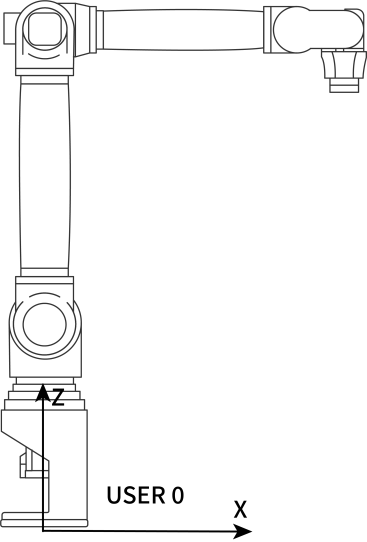
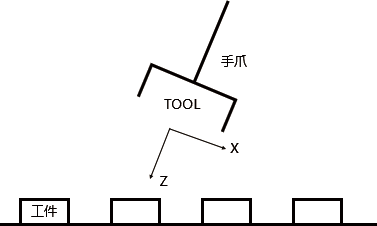
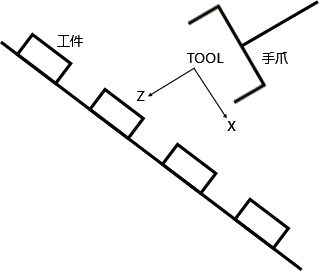
Inference: From the figures, it can be seen that if using the default user coordinate system User 0 or the Cartesian coordinate system, it would be very difficult to debug each workpiece position. But if there is a coordinate system whose two directions are exactly parallel to the worktable surface, it would be much more convenient.
User Coordinate System Functions
Determine the reference coordinate system.
Determine the motion direction on the worktable for convenient debugging.
User Coordinate System Characteristics
The new user coordinate system is obtained by transforming the default user coordinate system User 0. The position and orientation of the new user coordinate system relative to space do not change.
User Coordinate Parameters
Click Settings - User Coordinate Calibration to enter the user coordinate calibration interface, as shown:
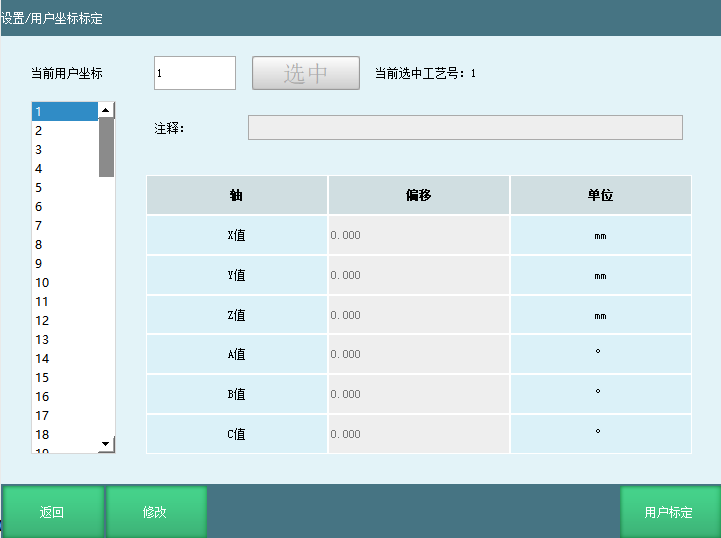
User coordinate parameters:
| Axis | Offset | Unit |
|---|---|---|
| X | Offset of user coordinate origin relative to robot base origin along X-axis direction | Millimeters (mm) |
| Y | Offset of user coordinate origin relative to robot base origin along Y-axis direction | Millimeters (mm) |
| Z | Offset of user coordinate origin relative to robot base origin along Z-axis direction | Millimeters (mm) |
| A | Rotation angle of user coordinate system relative to Cartesian coordinate system around X-axis | Degrees/Radians (°/rad) |
| B | Rotation angle of user coordinate system relative to Cartesian coordinate system around Y-axis | Degrees/Radians (°/rad) |
| C | Rotation angle of user coordinate system relative to Cartesian coordinate system around Z-axis | Degrees/Radians (°/rad) |
User Coordinate System Calibration
Click the [User Calibration] button at the bottom of the "User Coordinate Calibration" interface to enter the "User Calibration" interface, as shown:
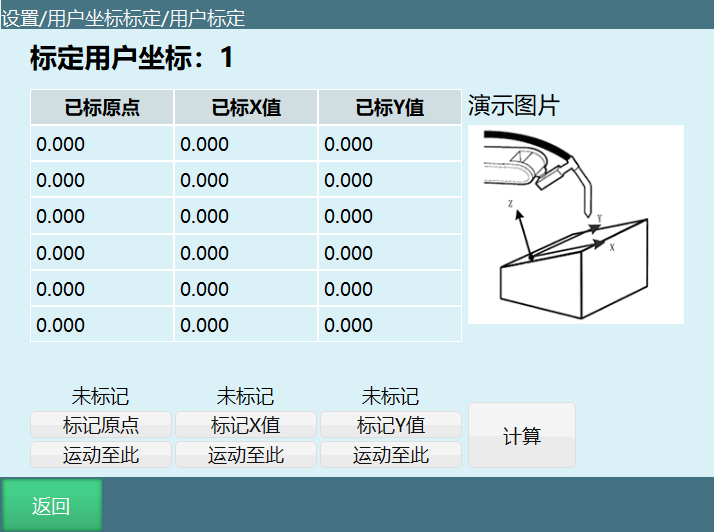
Calibration steps:
Move the robot tip to the desired user coordinate system origin position and click the "Calibrate Origin" button.
Move the robot from the user coordinate system origin in the desired user coordinate system X-axis positive direction by any distance and click the "Calibrate X-Axis" button.
Move the robot from the user coordinate system origin in the desired user coordinate system Y-axis positive direction by any distance and click the "Calibrate Y-Axis" button.
[Calculate] After the three points are calibrated, click Calculate. After the success prompt, user coordinate calibration is complete.
[Return] Return to the previous interface.
[Modify] Modify the calibrated points. After modification, click [Save], then click Calculate to modify the user coordinates.
AI Retrieval Q&A (Q&A for Retrieval)
Q: What is a user coordinate system?
A: A user coordinate system is a coordinate system obtained by transforming the default user coordinate system User0, used to determine the reference coordinate system and the motion direction on the worktable for convenient debugging.
Q: What is the function of the user coordinate system?
A: 1. Determine the reference coordinate system; 2. Determine the motion direction on the worktable for convenient debugging.
Q: What are the characteristics of the user coordinate system?
A: The new user coordinate system is obtained by transforming the default user coordinate system User0. Its position and orientation relative to space do not change.
Q: What are the steps for user coordinate system calibration?
A: 1. Move the robot tip to the desired user coordinate system origin position and click the "Calibrate Origin" button; 2. Move the robot in the desired user coordinate system X-axis positive direction by any distance and click the "Calibrate X-Axis" button; 3. Move the robot in the desired user coordinate system Y-axis positive direction by any distance and click the "Calibrate Y-Axis" button; finally click Calculate.